This Final Cut Pro X tlie effect provides many more options than the built-in version.
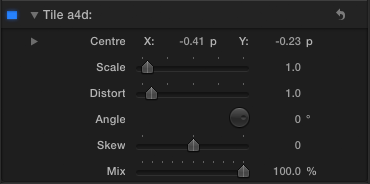
You can use it to offset the centre of a clip using an on-screen control:

Here are the controls:

This Final Cut Pro X tlie effect provides many more options than the built-in version.
You can use it to offset the centre of a clip using an on-screen control:
Here are the controls:
I’ve updated my Magic Lantern Compose Final Cut Pro X generator.
November update: The 10.0.6 update to Final Cut Pro X has broken these generators – they only work in 10.0.5. This is because the way motion templates handle drop zone clips has changed. Sorry!
Magic Lantern is a system for adding features to Canon DSLRs, Unified is a recent ML package enables some cameras to shoot footage that can processed to produce content with a larger exposure range – i.e. High Dynamic Range.
The files produced are made up of alternate frames of under- and over-exposed footage. The generators take these frames and give you better control over how these frames are combined.
For more information on Unified and Magic Lantern and the software to for your Canon DSLR, visit its home
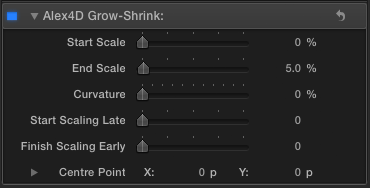
This Final Cut Pro X effect animates a change in scale for a clip. It defaults to increasing the size of a clip by 5% over the lifetime of the clip. This kind of ‘creep in’ is useful for adding a little subliminal interest to stills and titles.
You can also choose a centre point for the scaling to happen around. This helps to zoom in on an interviewee, or zoom out from a specific part of the frame.
Here are the controls:
This Final Cut Pro X effect combines two of my other effects: Alex4D Rotate XYZ and Alex4D Extrude. With it you can rotate a clip or title in three dimensions and then extrude it to simulate a 3D effect.
Here’s what it looks like in action:

The advantage of combining these two effects over applying the rotate effect followed by the extrude effect is that if you want to use the checkerboard background of the rotate effect and then extrude it, the checkerboard will be extruded along with the clip.
One less celebrated feature of Final Cut Pro X is the ability to quickly apply different colour grades using ‘Look’ effects.
Here’s a demo of all the built-in Looks:
There are samples of every colour correction effect built into Final Cut Pro X. They are found in the Looks section of the effects browser.
In most cases there are two samples of each effect – the first sample shows the default settings. In some cases there are a variety of different controls, so the second sample shows how different the effect can look when one or two parameters are changed.
The footage is from the Blackmagic website forum, showing off footage from their new 2.5K camera.
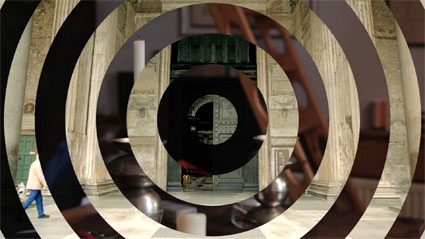
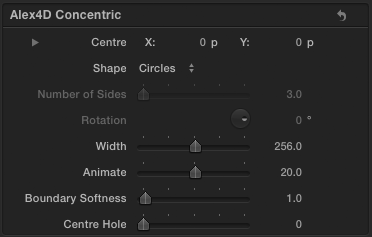
In this Final Cut Pro X transition the incoming clip is divided up into a series of concentric shapes which fade in over the outgoing clip. You can choose from circles, triangles, squares and polygons with more sides. You can also control the width between each shape, the softness of the edges amongst other settings
Here are the controls:
This transition freezes the outgoing clip before showing an incoming clip or shows a freeze frame of an incoming clip or freezes the outgoing clip and then shows a freeze frame of an incoming clip. You can also choose to cross dissolve between the clips.
Here are the controls:
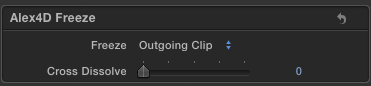
Freeze: Choose between Outgoing Clip, Incoming Clip or Both Clips
Cross Dissolve: 0 – no dissolve i.e. show freeze only, 50 – dissolve for half the duration, 100 – dissolve during the whole transition
Here’s a demo:
Although Final Cut Pro X has had many updates over the last year, editors still need workarounds to get the same features as they were accustomed to in alternative editing applications, including Final Cut Pro 7.
Sadly the 10.0.5 update changed the way the Timecode generator worked in Motion and Final Cut Pro X. This generator was used to create effects that could show timecode on a clip.

This can be useful when collaborating with other people. Knowing the timecode of specific times in footage can be useful to producers, researchers, transcribers and translators.
Since version 10.0.5, any effects applied to a clip don’t get any timecode information a clip has. This means any effects created in Motion, such as the timecode generator, don’t get that information, so cannot display it.
Until an update fixes this problem, here’s a workaround.
Following on from a patent for media collaboration for professionals, Apple have recently applied for a couple of video editing patents. Note that I’m not interested in whether such software features should be patentable, I’m interested in what these ideas could mean for future software.
Smart transitions
The first patent is about applications automatically selecting a transition between clips based on content, metadata or ‘sideband data’.
…based on the analysis and/or comparison of adjoining video clips, or adjoining portions of video clips, a transition type may be selected. The transition type may be selected based on rules defined for particular content characteristics, such as motion characteristics, temporal characteristics, or color characteristics, or a combination of content characteristics
The patent includes some examples showing the choice between a hard cut and a crossfade:
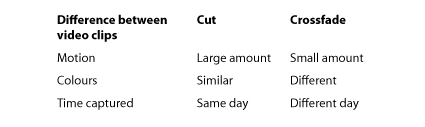
For example, if it is determined that the content of adjoining video clips is temporally proximate (i.e., was captured on the same day), a hard-cut transition may be selected for transitioning between the adjoining video clips. If it is determined that the content of the video clips is temporally distant (i.e., was captured on different days), a crossfade transition may be selected for transitioning between the adjoining video clips. If it is determined that the content of the adjoining video clips contains a high amount of motion, a hard-cut may be selected for transitioning between the adjoining video clips. If it is determined that the content of the adjoining video clips contains a low amount of motion, a crossfade transition may be selected. Moreover, if it determined that the color characteristics of two adjoining video clips are similar, a hard-cut transition may be selected; if the color characteristics are different, a crossfade transition may be selected.
The patent mentions that the rules of which transitions to apply to which video clip combinations can be set using application preferences.
However much you test software before it is launched, there’s nothing like releasing version 1.0 to reveal many problems you never thought of.
Many applications have a secret ‘debug’ mode which helps software engineers get useful information about how the software is running. This helps track down bugs. In the 90s discovering these modes in popular software was a sport for many power users. These days entering these modes isn’t just a matter of holding down the shift, command and option keys and opening a specific menu. It is more likely that debug modes only work if the Mac you are running the main application is also running a developer helper app. At the least it is a matter of setting a secret preference using a Terminal command.
Even though I don’t know how to get into Final Cut Pro’s debug mode, the text associated with it is built into every copy of the application.
There is a great deal of debug text, most of it making sense only to a few hundred people. However, debug modes can also be a place for Apple to test features that haven’t been fully implemented yet…
It seems that there are many debug settings in a secret debug preference panel. Text from Final Cut Pro.app / Resources / Contents / en.lproj / PEAppDebugPreferencesModule.nib
Debugging text sample:
Highlight Missing Artwork
Enable Performance Monitoring
inspectorDarkAlternatingRowColor
Catalog Settings:
Discard catalog on launch
Discard catalog if olderHelium Settings:
Log Helium Effects to Console
Log Helium Effects to Dot File (in /var/tmp)
Log Helium Render StatisticsCPU Cores:
Optical Flow Analyzer:
OpenCL GPU
OpenCL CPU
Non-CLColor Settings:
Display the Region PickerPeriodic backup interval (in minutes)
Developer Settings:
Enable Screen Size Override (next launch)
Clear User Defaults Stored In CatalogDisplay Player Debugging
Nearest Neighbor Filtering When Scaling to Display
Draw First Field Only
Draw Both Fields Alternately (use Cmd-> to step by fields)
Draw Both Fields Interlaced as Single Frame
Draw Both Fields Interlaced Alternately
 alex4D old blog