Archive

Yearly Archives: 2012

As part of 685,000 blog views, visitors downloaded my Final Cut Pro plug-ins many thousands of times.

If you follow my blog via email using the control on the top left of the blog page, you’ll get advance notice of new posts and plug-ins and more.

Thanks to my many visitors in 2012. I plan to make many more Final Cut Pro X effects, transitions, titles and generators in 2013!

Final Cut Pro X Top 10

1. Blurs

Six blurs and one sharpen effect

2. Mask+

Define 4, 8 or 16 points of a mask with animation control over scale, rotate and perspective distortion

3. Colour effects

11 colour control effects

4. Magic Lantern HDR

HDR-logo-480w
Composition controls for resolving HDR clips generated by Magic Lantern on Canon SLRs

5. Bad TV

More controls than the standard version

6. 4 Up

Display four clips on the same screen, or switch between them

7. Aged Film

More controls and ‘Bad TV’-style rolling

8. Distorts

Four distort effects

9. Adjustment Layer

Any effects or transformations you apply to this title will be applied to all timeline clips below

10. Smooth Move

Defines a start and finish position, scale and rotation for clip content with controls for how the clip moves from start to finish

Final Cut Pro 6 & 7 Top 5

1. Closing Credits
This plugin gives you typographic controls over all names or credits or section titles at the same time. You can also set the credits to scroll at specific speeds.

2. Access to all your fonts

Apple’s plugins don’t give you access to all your fonts. Use these replacement versions to use any installed font.

3. Lower Third

Alex4D Lower Third Final Cut plugin

This generator provides extra text and positioning options for labelling people and places.

4. Vignette filter

A vignetting plugin giving control over position and aspect ratio.

5. Improved text Crawl
crawl-screen-192

This generator removes the limit on the amount of text you can use in a crawl, and adds extra features.


This Final Cut Pro X effect is for combining HDR footage produced using the Magic Lantern tool for Canon DSLRs. Magic Lantern is open-source firmware that adds many useful features to cameras.

HDR-logo-480w

This effect is for HDR clips recorded with Magic Lantern. High Dynamic Range imagery relies on taking two pictures of a scene using different exposure settings: the first underexposed, the second overexposed. Combining these pictures results in more detail in the brightest and darkest areas. Magic Lantern does this for video by modifying exposure settings for alternate frames. Alex4D Magic Lantern HDR gives you control on how these frames are combined.

Visit the Magic Lantern site to find out more about the many features it adds to Canon cameras.

Here are the controls:

controls

Read More

Over at the fcp.co forum, a user named ‘parchabg’ was trying to get better results when exporting interlaced PAL from Final Cut Pro X. I suggested using Apple Compressor’s ‘DV Stream’ setting. It allows control over interlace field order.

If you use a Compressor preset very often, you can use that preset as a Share Destination from within Final Cut Pro X.

Compressor keeps presets in .setting files.

If these .setting files are in

Your user name/Library/Application Support/Compressor/Settings/

…you can use them within Final Cut Pro X.

I haven’t bought Compressor 4, I still use Compressor 3.5.3. It stores its .setting files in a place that Final Cut Pro X cannot see: Your user name/Library/Application Support/Compressor/

That means if there’s a .setting file I want to use in Final Cut Pro X, I need to move it into a sub-folder named ‘Settings’:

custom compressior settings location

To add a Compressor setting as a destination, go to the Share submenu of the File menu. Choose ‘Add Destination’. Double-click the Compressor Settings icon:

double-click for new compressor settings dest

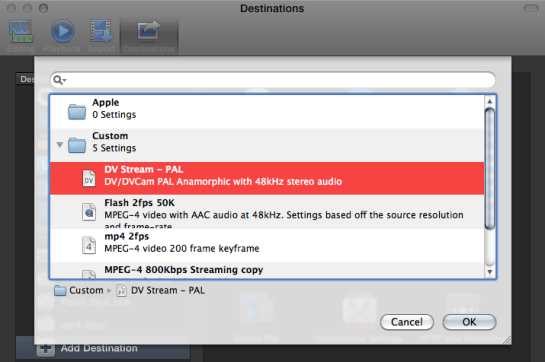
The dialogue box that appears shows the Compressor presets stored in .setting files:

choose setting you want

Choose the preset you want as a new Share destination and click OK. Once you close the Preferences dialogue, a new item appears in the Share menu: your new Share Destination:

new submenu entry

No Compressor 4 needed

If you need a custom destination but don’t have Compressor, you can copy custom .setting files from people with Compressor and this technique still works. This is because Final Cut Pro X includes all the code required to run these presets.

If you’d like to try this PAL DV Stream preset, you can download it from here.

When first trying out downloaded effects, transitions, titles and generators in Final Cut Pro X, sometimes the viewer turns blue.

If this happens to you, the most likely problem is that your version of Final Cut Pro X is too old. You need to use the Mac App Store to check for updates. You’ll see the update if you are signed into the App Store with the same Apple ID as you bought your copy of Final Cut Pro X.

In practice most people who provide transitions, effects, generators and titles update their versions of Motion 5 and Final Cut Pro X when they come out, so any tools they make available after that only work on the new version of Final Cut.

This means most effects and transitions made available after September 20th, 2011 won’t work in version 10.0.

Most effects and transitions made available after November 16th, 2011 won’t work in version 10.0.1 or earlier.

Most effects and transitions made available after January 31st, 2012 won’t work in version 10.0.2 or earlier.

Most effects and transitions made available after April 10th, 2012 won’t work in version 10.0.3 or earlier.

Most effects and transitions made available after June 11th, 2012 won’t work in version 10.0.4 or earlier.

Most effects and transitions made available after October 23rd, 2012 won’t work in version 10.0.5 or earlier.

Most effects and transitions made available after December 6th, 2012 won’t work in version 10.0.5 or earlier, but will work in the out of date version: 10.0.6.

Read More

When learning Apple Motion I suggest that people avoid using keyframes to animate parameters. Motion is much happier using behaviours to change values over time.

This tip is for Motion users who have a good understanding of how to use behaviours to control animation.

A popular parameter behaviour is Ramp. Over the time of the behaviour it animates a parameter from one value to another. In this case, at the start of the behaviour, 180 degrees is added to the rotation parameter and this value changes to adding 0 degrees by the end:


The Curvature value of 100% means that the value eases out from 180 and eases into 0. Here’s the animation graph:

Unlike some behaviours you cannot directly set a curve shape using Ramp. In many cases you need to have a curve that eases in only or eases out only.

Using this tip, you get more control over the animation curve.

Read More

The 10.0.6 update added some text editing features for modifying title text. Here they are in action using the Zoom title (from the ‘Build In/Out’ section of the Titles browser) as an example.

If you select the title in the timeline, or if the playhead is over the title, there are two new ways to select multiple text items:

You can drag in the viewer or Command-click boxes to select more than one text box.

Read More

Although welcome, the recent 5.0.5 update to Motion was nowhere near as big as the 10.0.6 update to Final Cut Pro. As is usual, Apple’s release notes refer to bug fixes and performance improvements. This time there are also user interface speed increases and a few interesting new features.

Text Edit Markers

If you are designing titles, generators or effects which have a series of text layers that take turns in appearing, you can add a Text Edit marker to each text layer. Editors using the template in Final Cut Pro can navigate from marker to marker to make it easier to enter and edit text.

Here’s the Motion timeline for Final Cut’s built-in title from the Bumper/Opener section: ‘Snap – Text Build’:

Read More