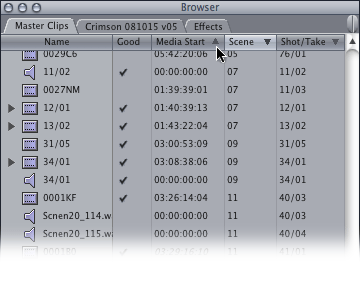
Here’s the browser for a project I’m working on:

You can see that I dutifully entered scene and setup/take information for each clip. The problem is that I want to sort by ‘Scene’ first, then by ‘Shot/Take.’ I found that if I click the ‘Scene’ column, the clips are sorted by scene, but use the name of the clip as the secondary sort factor. I spent time modifying the P2-supplied names of the clips to match their setup and take number.

As I didn’t finish renaming all the clips, you’ll see the sort is in the wrong order. In scene 7, the clip for take 3 of setup 11 appears before take 2; in scene 11, setup 41 appears before setup 40. As you might be able to see, I had multiple takes from over 75 setups to rename, so I turned to the manual for help.

It turns out that you can sort by any number of columns you want. For example, to sort by Scene first, then by Shot/Take secondly, click the ‘Scene’ column heading, then shift-click the ‘Shot/Take’ heading:


These clips are sorted by scene and shot/take.

If you want to add a third sort, shift-click a third column:

As my sound clips have the same scene and shot/take number, I can sort by timecode. As the audio was recorded on a hard disc recorder, the media starts at 0, so the audio clips appear first when the other two values (‘Scene’ and ‘Shot/Take’) are the same.

If you want to reverse the sort on a column, click the arrow:

If you want to reset the sort so that it only applies to one column, click its heading without using shift.

That’s the problem with using FCP for years. You hardly ever check the manual to see if your workarounds (naming the clips in this case) still apply.

Visit my Final Cut home for more plugins and tips
finalcuthomethumbnail

I regularly listen to Pilar Alessandra’s weekly screenwriting podcast (iTunes, FeedBurner) as part of her ‘On the Page’ script consultation and screenwriting education business.

Many writers know that screenwriting is rewriting, and almost each week Pilar suggests a ten minute exercise that you can do to improve the current draft of your script. Here are three examples:

Create character rules. What does your character always do in his or her public life, personal life or private life? Apply those rules to situations to create unique scenes. Or, break a rule later on, to show character development and change.

So does your protagonist do in the company of strangers, with loved ones or alone? They might continually swear – or never curse at all. That can tell us a lot about a person. The point when they break those rules tells us more. These rules illustrate change in your character. Do the same for all your major characters – especially your antagonist.

To find the perspective and arc of another character in the script, ask what that character’s movie is. Do a “what if” log-line from that character’s point of view.

Every character’s logline should make sense from their point of view. If you come up with a antagonist logline, your script will be stronger.

In scene direction, re-describe characters using “essence statements.”
– “The kind of woman you’d leave your wife for.”
– “He never met a jelly donut he didn’t like.”
– “Blink and you’ll miss her.”
All of these statements are more descriptive than a simple laundry list of physical attributes.

These statements are much more useful for directors, casting agents and actors.

These are just three of over 40 exercises broadcast over the last 14 months. The podcast is a lot more than this. Most weeks you’ll hear from interesting guests of all kinds: producers, agents, managers, directors, lawyers and development executives as well as writers. The show is also a fun listen.

There are a lot of episodes already up, so it’s time to start catching up.

In seven years, it’ll be 2015, when the events of Back to the Future part II are set. Blade Runner is set four more years after that. I don’t think we’ll have flying cars for individuals or emotion-riddled robots, so what will we be doing with all that computer power.

Given that the computer I’m using now has 4,194,304 times as much memory than my first home computer, and probably runs that many times faster, and the rate of acceleration of computer power, it’s fun to think of what a computer a million times faster with a million times the memory could do.

How about this:

Imagine combining a MRI scanner with 3D modeling software to convert all our analogue archives to digital. Once scanners are able to recognise a wide range of molecules and accurately detect their position in three dimensions, I foresee a device that you could rent to scan your personal archives.

Imagine a cardboard box full of photos, scribbled notes, floppy disks, magazines and ticket stubs. If the scanner was good enough and the software smart enough, all the information in the box could be converted to digital formats.

The simplest to convert would be the digital media. All the molecules, their positions and their magnetic fields in a pile of old floppy discs, laserdiscs, SyQyest, Jaz, Zip or hard drives could be recognised and converted.

Then the position of the paper would be found. Then the ink molecules on the pages of the notes, books and magazines would be investigated. From the curve of the paper, the words typeset, printed and doodled could be compiled into separate files. The chemicals in the photos could be read so that all the colours can be combined into digital images (whether on photographic paper or on undeveloped film).

Imagine how much recycling could be possible if we knew that all the information stored in all the archives, governmental, corporate and personal could be preserved without all the boxes and boxes of stuff that we keep hanging around.

Instead of the paperless office, would could have paperless lives… at least we could choose exactly what we wanted to have on paper and no more.

PS: For those predicting the total collapse of technology, civilisation and knowledge; paper still isn’t good enough. For those seeking ten-thousand year solutions, visit The Long Now Foundation – which includes The Long Server.

All those years ago, all we did is upload links to other places. Alta Vista wasn’t around, and no-one could think of anything else to add…

Tips

Larry Jordan’s tip of the day
FCP Tips – a site with video tips and tutorials for Final Cut
Digital Heaven tips

Plugins

Piero’s Final Cut Express plugins – free plugins – and information that helped me create my own
Andy’s plugins – all free
Digital Heaven plugins – for Final Cut

Writing plugins

Apple documentation – for those who already know simple scripting
fxScript reference – an online plugin scripting community

News

MacVideo – all about creating video on Macs
HDFilmtools – a different Larry Jordan’s video interview site

One of the default settings of Apple’s Finder is different from what I’d like. I hardly ever want QuickTime movies to open in any application other than QuickTime Player. Any QuickTime movies created in Final Cut will open in Final Cut.

It used to be that I would export a QuickTime movie from Final Cut, quit and then double-click the exported movie in the Finder, wanting to check the movie before I uploaded or recompressed it. Moments after I had quit, Final Cut would open again. Final Cut would also open any movie it created at any time after… I was always surprised when Final Cut opened.

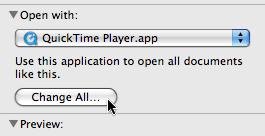
There is a way around this. To make sure any QuickTimes created in Final Cut don’t automatically launch Final Cut when double-clicked, go to the Finder and choose one of the files and select ‘Get Info’ from the File menu (or press Command-I):

First choose ‘QuckTime Player’ from the ‘Open with:’ menu. This will make this specific movie open in QuickTime Player. Then click ‘Change All…’ to make all Final Cut generated movies always open in QuickTime Player:

Harriet weaned me off puns in my daily life, but I couldn’t resist that one.

Went to The London Frieze Art Fair today. It’s the first time I’ve been near Frieze since working with Tony Arefin back in 1988 on a Yoko Ono poster.

Although the ‘Fair’ name might tempt you to think that this is a place where the general public might be able to buy art, this event is more like a instant teleport device between the top 150 art galleries of the world.

Although I bought my debit card with me, I’m not in the market for £20,000 pieces yet – and those prices are for the up and coming artists.

As well as the galleries, Frieze also commissioned a few art pieces themselves. Some were more obvious than others:

The show inspired me to come up with the following ideas (from my notes taken at the event):

Art La Ronde
Blonde survey
Containers
Odder research
Crutch ski-ing
Bedroom tag
Curtains for Bill
Famous Welsh
Straps close up
Archaeological layers
Hoods
My map
Sync clocks?
Location icosaheadron

The fair runs until Sunday 19th October. If you go, I hope you are as inspired as I was.

I’m a happy user of a Panasonic HVX200 and a Canon HV20, which are relatively affordable cameras for capturing images beyond standard definition. One of the biggest problems in shooting HD is focussing the shots. Most camera viewfinders are much too small to be of any use – let alone high-enough resolution to show the full image being recorded. My MacBook Pro may have a 1920 by 1200 display, but it will be a long while until that sort of display fits on a camera designed to be held with one hand.

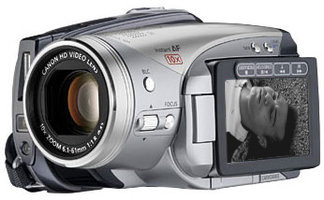
However, some cameras have a connector which might help: an HDMI connector. HDMI is a standard for transmitting uncompressed digital video. My £435 HV20 has one on the back:

The HDMI connector on the back of an HV20 camera

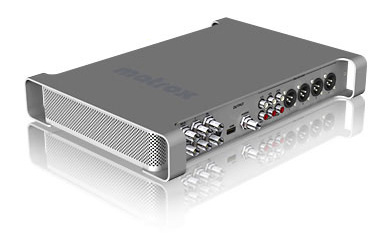
If you add a Matrox MXO2, you could use a computer display help to focus your image.

The MXO2 is a box for sending HD video signals to computer monitors, but I think that the monitor can be the one built into your portable computer also. It comes with a Express/32 card for MacBook Pros as well as a PCI card for MacPros. It also has a built-in battery.

The downside is that using a MXO2 and MacBookPro isn’t very convenient or affordable for most people.

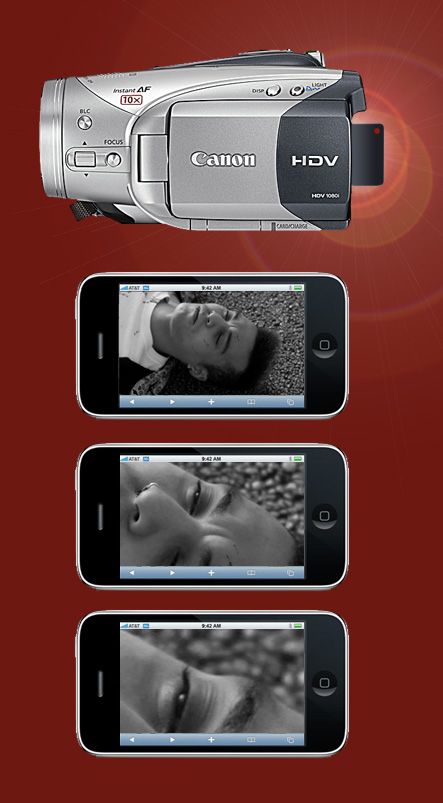
I’ve had a thought: what if you could use your mobile phone as a viewfinder? They have better screens than some small camcorders. You can use multitouch gestures to enlarge parts of the image you’re interested in.

The question is, what is the simplest way of connecting the iPhone to your camera? The first thought you might have would be to create a special camera to iPhone cable. The problem is that the connector on iPhones and iPods don’t allow for video input. An alternative is to make the image available to the iPhone using Bluetooth or WiFi. This means that this method will work with all iPhones and iPod Touches that can connect those ways.

The iPhone Bluetooth won’t work for this application because it doesn’t support OBEX, the standard for passing multimedia files between phones and other devices.

http via WiFi could work. That means you could use the web browser in your iPhone (or any Wi-Fi enabled device) to navigate to a specially generated page that will hold the picture generated by the camera. You would have all the image navigation technique you are used to in your browser to have a close look at the picture you’re taking.

So, I hope small device manufacturers are listening. Create a fingertip-sized device that plugs into the HDMI port of a HD camcorder. The HDMI protocol supplies 5V of power if needed. That could be used to power a chip that converts the pixels sent into the HDMI by the camera into an image. This image would be then broadcast to nearby WiFi devices as a picture using a mini webserver on the same chip. This custom-built chip could be added as a dongle to any connector that transmits an image that you want broadcast online.

This is the relative size of a Canon HV20 and an iPhone.

So, if anyone wants to make such a thing, all I want is credit and a few samples of each one you produce!

Here is my free plugin to help create closing credits scrolls using Final Cut Pro 6 & 7.

You can use up to four type styles. Two for centred text, one for text that’s aligned to the right – which usually defines roles in productions – and a style for text that’s aligned to the left – which names the actor or person involved.

This image…

is the result of using these settings:
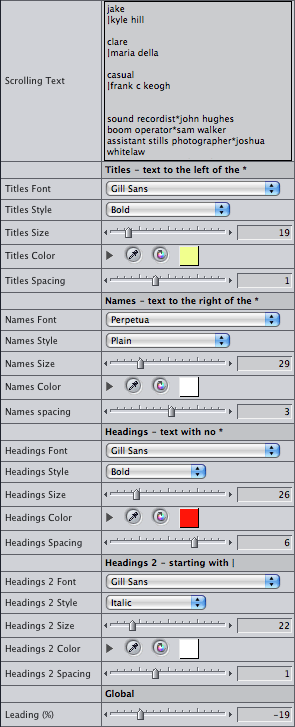
This is a recording showing font colour and sizes of type being changed in real time:

For each style you can instantly change font, size and colour while clients watch. You can also control scrolling speed in pixels per second as well as keyframable speed changes.

The default settings…

…produce this image:

Like Apple’s ‘Scrolling Text’ generator, the ‘*’ character denotes the difference between roles and the names of the people performing the roles.

There are also two heading styles. You can use these two headings styles to do TV-style end credits too. You denote main headings by not including a ‘*’ character, secondary headings are marked with a ‘|’ character at the start (use ‘Shift-\’ to get the ‘|’ character).

Each of these styles have font, typesize, colour and spacing settings.

All the lines have the same line height. This is based on the ‘Names Size’ parameter. You can use the ‘Leading’ parameter in the ‘Global’ section to add or take away space between lines.

Animation methods

There are three ways of animating the credits: ‘From In to Out’ (the speed is set to show the all credits using whatever duration you give the generator), ‘Keyframe % Complete’ and ‘Speed (pixels/sec)’ – the second two options make it easier to synchronise more than one instance of the generator.

If you choose ‘Keyframe % Complete’ as the animation method, set the ‘% Complete’ parameter to 0 at the first frame of the generator, set a keyframe, move to the point you wish the credits to clear the screen and set the ‘% Complete’ parameter to 100%:

You can also set the speed of the animation to a specific speed. This parameter doesn’t keyframe well, so choose a fixed speed and the text will move at that speed. Choosing specific speeds is useful if you have small type that will be shown on interlaced video. Adam Wilt has written the definitive page on scrolling speeds for DV productions. His bottom line is:

Unfortunately, in 525/59.94 [NTSC] the only two decent rates that are slow enough to be read are 120 and 240 (and the latter only on a good day!). 625/50 [PAL] video is better — not only are the roll rates about 20% slower, there are almost 20% more active scanlines in a frame, so in 625 you can roll at 100, 200, and 300 lines/second without straining any eyeballs.

The values Adam uses for lines per second I call pixels per second in this plugin.

If you want to animate other generators, stills and clips using these three methods (for example to add a logo to your credit scroll), use my ‘Move’ plugin.

Download Alex4D_closing_credits_v1

Installing the plug-ins

Download the ZIP archive of the plugins. Drag the plugins from the ‘Alex4D_closing_credits_v1’ folder to one of two places on your computer:

Your Startup HD/Library/Application Support/Final Cut Pro System Support/Plugins

or

Your Startup HD/Users/your name/Library/Preferences/Final Cut Pro User Data/Plugins/

Restart Final Cut, and you’ll see two new generators in the ‘Text’ section of ‘Video Generators’

To set up a credit list,
1. Either
– Open the Effects Tab in the browser, open the Video Generators folder, open the Text subfolder, double click one of the ‘Closing Credits’ generators
– In the viewer window, click the Generators popup…

… and choose ‘Alex4D Closing Credits’ from the menu

2. The generator will open in the Controls tab of the Viewer. Enter some initial text in the ‘Scrolling Text’ field.
3. Click the Video tab of the Viewer and drag the video onto your timeline to add the new instance of the generator to your timeline.
4. To make changes to the generator you have just added the timeline, double-click it to load that instance into the viewer, click the Controls tab and make changes. You’ll see them update in the canvas (if the playhead is over the generator).

Because Final Cut doesn’t always list all the fonts on your machine in font popup menus, I’ve also included a version of the plugin without font popup menus but with places for you to enter the names of the fonts you want to use.

Visit my Final Cut home for more plugins and tips

finalcuthomethumbnail

Due to the litigious nature of the world, I need to add the following weasel words: These plugins are provided ‘as-is’ and come with no warranty whatsoever. Under no circumstances is the author liable for any data loss or corruption. Use them at your own risk. Save copies of your critical projects when using these plugins. I’ve tested them on Final Cut Pro 6.0.4, but they should work on any version of Final Cut Pro or Express released in the last five years back to FCP4.

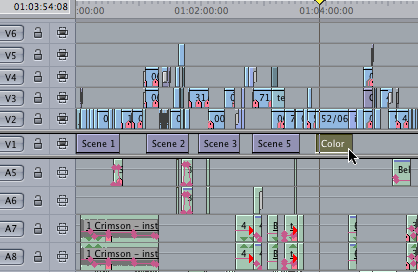
Having used Macromind Videoworks and Macromind Director Interactive, I’ve used markers in timelines for many years. I’ve missed having named markers in Final Cut – seeing the names of each marker in the timeline. I’d also like a way of moving more than one marker at a time.

Until the next version of Final Cut, you have the option to use named generators. Here some ‘Color’ generators are placed at the start of each scene:

If you don’t want to put them on layer 1, you can have the generators at a higher layer and set the opacity to 0%.

You can give generators names using the ‘Item Properties’ sub-menu from the Edit Menu, or press Command-9 or Right/Control-click the clip. You can give the clip whatever name you find useful for your edit:

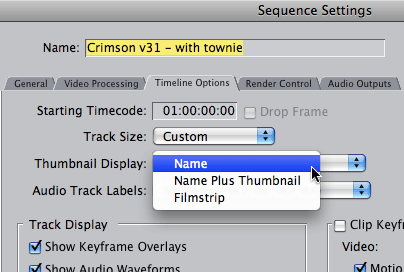
You’ll have more room for the name of each clip to be shown if you choose ‘Name’ from the Thumbnail display popup in the Timeline Options tab of the Settings… command (Sequence menu or command-0):