Archive

final cut pro x

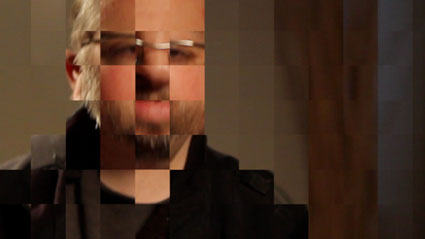
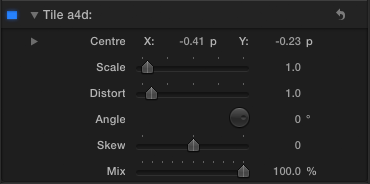
This Final Cut Pro X effect is an alternative way of adding a pixellation effect to a clip. It divides the clip into a grid and scales up each grid element.

Apologies to Matt Davis for scrambling his face.

Here’s what it looks like in action:

Here are the controls:

Read More

In September 2011, I made an improved version of Final Cut Pro X’s Ticker title. I linked the size of the background of the ticker to the font size of the text and made the title work in different aspect ratios such as 4:3 and 2:1.

This new ‘Plus’ version adds some animation and layout options. Now you can have the ticker move from left to right or remain still. You can also choose where the ticker starts moving from, and if the ticker itself is cropped. The duration of tickers can be longer too.

The default text position is within the title safe area. You can control the vertical position of the ticker, the transparency, border and shadow of the text and the background.

(To get the dot “·” used in the sample text, press shift-option 9)

Here are the main controls:

Read More

I’ve updated my Magic Lantern Compose Final Cut Pro X generator.

November update: The 10.0.6 update to Final Cut Pro X has broken these generators – they only work in 10.0.5. This is because the way motion templates handle drop zone clips has changed. Sorry!

Magic Lantern is a system for adding features to Canon DSLRs, Unified is a recent ML package enables some cameras to shoot footage that can processed to produce content with a larger exposure range – i.e. High Dynamic Range.

The files produced are made up of alternate frames of under- and over-exposed footage. The generators take these frames and give you better control over how these frames are combined.

For more information on Unified and Magic Lantern and the software to for your Canon DSLR, visit its home

Read More

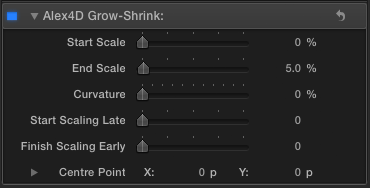
This Final Cut Pro X effect animates a change in scale for a clip. It defaults to increasing the size of a clip by 5% over the lifetime of the clip. This kind of ‘creep in’ is useful for adding a little subliminal interest to stills and titles.

You can also choose a centre point for the scaling to happen around. This helps to zoom in on an interviewee, or zoom out from a specific part of the frame.

Here are the controls:

Read More

This Final Cut Pro X effect combines two of my other effects: Alex4D Rotate XYZ and Alex4D Extrude. With it you can rotate a clip or title in three dimensions and then extrude it to simulate a 3D effect.

Here’s what it looks like in action:

The advantage of combining these two effects over applying the rotate effect followed by the extrude effect is that if you want to use the checkerboard background of the rotate effect and then extrude it, the checkerboard will be extruded along with the clip.

Read More

One less celebrated feature of Final Cut Pro X is the ability to quickly apply different colour grades using ‘Look’ effects.

Here’s a demo of all the built-in Looks:

There are samples of every colour correction effect built into Final Cut Pro X. They are found in the Looks section of the effects browser.

In most cases there are two samples of each effect – the first sample shows the default settings. In some cases there are a variety of different controls, so the second sample shows how different the effect can look when one or two parameters are changed.

The footage is from the Blackmagic website forum, showing off footage from their new 2.5K camera.

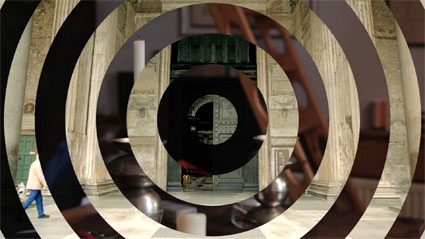
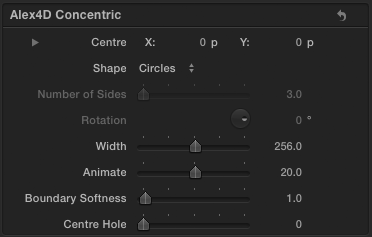
In this Final Cut Pro X transition the incoming clip is divided up into a series of concentric shapes which fade in over the outgoing clip. You can choose from circles, triangles, squares and polygons with more sides. You can also control the width between each shape, the softness of the edges amongst other settings

Here are the controls:

Read More

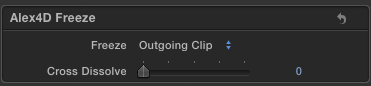
This transition freezes the outgoing clip before showing an incoming clip or shows a freeze frame of an incoming clip or freezes the outgoing clip and then shows a freeze frame of an incoming clip. You can also choose to cross dissolve between the clips.

Here are the controls:

Freeze: Choose between Outgoing Clip, Incoming Clip or Both Clips

Cross Dissolve: 0 – no dissolve i.e. show freeze only, 50 – dissolve for half the duration, 100 – dissolve during the whole transition

Here’s a demo:

Read More