In a recent article at InfoWorld, Neil McAllister reports that Microsoft have released a software development kit that shows how future applications can use a webcam input to replace a mouse or pen input. It works by recognising an object in your hand and tracking it as you move it across the screen.

There are upsides and downsides to not having a surface that you are touching when interacting with a user interface. The software will have great problems determining the equivalent of pressure. Mice have two levels of pressure: button pressed or button not pressed. Pen and finger-based devices can discriminate between many levels of pressure. The iPhone can tell how hard you are pressing its screen. That gives more options when it comes to interpreting what you want to achieve.

Alternatively, the advantage of an ‘air-based’ input technique is that you can deal with different scales of input. This is done simply a mouse: moving 3 mm using a mouse can move a cursor many pixels. If you run out of mouse mat, all you need do is pick up the mouse and move it to the middle of the mat again – as far as the computer in concerned, you haven’t moved the mouse at all. With pen- and finger- based interfaces, your gestures are always at a ratio of 1 to 1: you need enough space to move your pen or finger that matches your screen size.

A limitation of Microsoft’s ‘Touchless’ software is that it doesn’t track the operator’s eye. That means it must position a cursor showing you where your finger is. The advantage of eye tracking is shown here:

To prevent arm ache, moving objects across multiple large screens is a matter of moving your fingers closer to your eye. For more precise control, you can move your fingers closer to the screen. In the picture, the index fingers of the user’s hands are the same distance apart in each case, but define very different-sized areas on the screens shown. This fixes the problem of multi-touch scale.

To fix multi-touch pressure, there will have to be some sort of gesture that defines where in 3D space the virtual screen is. When needing to make big gestures like the upper picture above, you’ll need to define the screen as being close to your eye. When performing precise operations, you’ll to push the virtual screen further away. The ‘pressure’ will be calculated by the position of your fingers relative to the virtual screen.

The pressure problem will start to go away when we modify our user interfaces so that we are manipulating ideas more like clay than sheets of paper.

Here is a clip showing how realistic 3D rendering can be when the computer knows where your eyes are:

The catch is that the 3D effect doesn’t work for anyone else looking at the same screen. A 3D monitor will be needed for each viewer.

In the next few days I’ll upload a free plugin for you to download that will let you create closing credits scrolls in a Final Cut Pro generator. Before I finish it, have you got any ideas for features? Here is a preview of the Canvas screen while I change settings in the control tab of the generator:

Leave any suggestions in the comments of this post.

Every once in a while I like to check something in one of the Final Cut Studio manuals. They are stored as PDFs inside the applications themselves. It is possible to get inside the application using the Finder, but there is a simpler way.

I also like to look at more than one page of a manual at a time. That can be done with a spare digital copy of the manuals.

To get your spare copy, choose the manual from the Help menu:

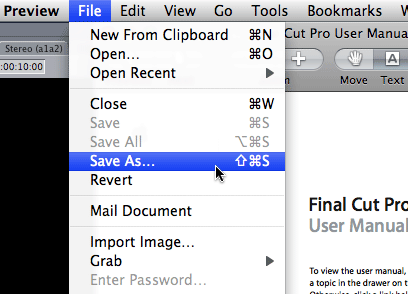
The manual will open in Preview. Go to Preview’s file menu and save a copy of the manual wherever you’d like to keep it:

Manual highlights

Some information useful for Final Cut Pro users can be found in other manuals.

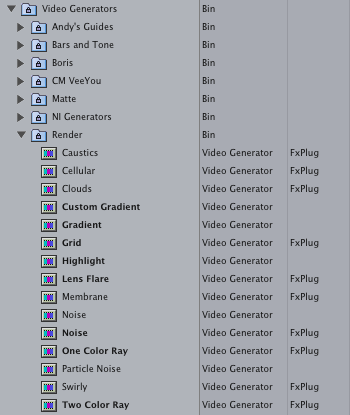
If you’d like more information on the generators installed when you install Motion, you can find more in the Motion manual. You can tell which generators are installed with Motion by looking at the Render generators. Those that use FxPlug technology came with Motion:

Information on their controls can be found on pages 968 to 983 in the Motion User Manual:

Even though you might not want to completely explore all the features of Soundtrack Pro, it might be worth your time reading parts of Soundtrack Pro’s ‘Effects Reference’ manual:

A compressor works like an automatic volume control, lowering the volume whenever it rises above a certain level, called the threshold. Why would you want to reduce the dynamic level? By cutting the highest parts of the signal (called peaks), the compressor lets you raise the overall level of the signal, thereby increasing the perceived volume. This gives the sound more focus by making the louder foreground parts stand out while keeping the softer background parts from becoming inaudible. Compression also tends to make sounds tighter or punchier because transients are emphasized (depending on attack and release settings) and because the maximum volume is reached more swiftly.

In addition, compression can help make a project sound better when played back in different audio environments. For example, the speakers on a television set or in a car sound system typically have a narrower dynamic range than the sound system in a theater. Compressing the overall mix can help make the sound fuller and clearer in lower-fidelity playback situations.

By default, the manuals open in Apple’s Preview application, but the search features of Preview could be better. If you have Adobe Acrobat Reader installed, you have better search. In Preview if you search for ‘Stop Analysis’ for example, you’ll be directed to every page with ‘Stop’ or ‘Analysis’ or ‘Stop’ and ‘Analysis’ anywhere on the page. If you use Acrobat Reader, it defaults to looking for pages with the specific phrase ‘Stop Analysis’ – much more useful (Pity the rest of Acrobat Reader is so bloated!).

For those of you who have been using Final Cut Pro for a while, there is a bug that has been hanging around for very many years. It usually crops up when a client brings you a font they want to use. You install it onto your Mac, but the font doesn’t work properly in the Final Cut generators and filters.

For example, your client might want to use various members of the ITC Century font family:

The various weights of ITC Centrury

Once you install the font, there are two problems:

1. Final Cut Pro doesn’t give you the option to use all the weights available
2. It displays an incorrect weight (boldness) of the font when you choose the ‘Plain’ style.

In some cases, the font install doesn’t appear in Final Cut Pro’s font menus at all.

This bug is due to the internal names of fonts. Final Cut assumes all fonts come in four variations: plain, italic, bold and bold italic. It also assumes that the ‘Plain’ variation doesn’t have a name ending in ‘Book’ or ’55.’ I have 19 variations of Univers installed on my computer. I can only choose one of these within Final Cut Pro.

It turns out that the problem is in the part of the Application that builds the ‘Currently available fonts’ pop-up menu that appears in text generators and a filter (‘Viewfinder’ in the Video category). Final Cut can display any font installed on your computer, but there isn’t a way of telling it which font you want to use: ‘ITC Century Light’ doesn’t appear in the pop-up menu.

Luckily text generators and the filter are written in Final Cut’s effects scripting language, fxScript. That gives us a workaround: I’ve modified the plugins that use different fonts to provide the option to type in the name of the font you want to use. It is less convenient to have to type it in, but much more convenient when it comes to using your whole font library in Final Cut.

Download alex4d_FCP_fonts_plugins
Installing the plug-ins

Download the ZIP archive of the plugins. Drag the plugins from the ‘alex4d_FCP_fonts_plugins’ folder to one of two places on your computer:

Your Startup HD/Library/Application Support/Final Cut Pro System Support/Plugins

or

Your Startup HD/Users/your name/Library/Preferences/Final Cut Pro User Data/Plugins/

Restart Final Cut, and you’ll see a new set of generators and a video filter.

Due to the litigious nature of the world, I need to add the following weasel words: These plugins are provided ‘as-is’ and come with no warranty whatsoever. Under no circumstances is the author liable for any data loss or corruption. Use them at your own risk. Save copies of your critical projects when using these plugins. I’ve tested them on Final Cut Pro 6.0.4, but they should work on any version of Final Cut Pro or Express released in the last five years back to FCP4.

Using the plugins

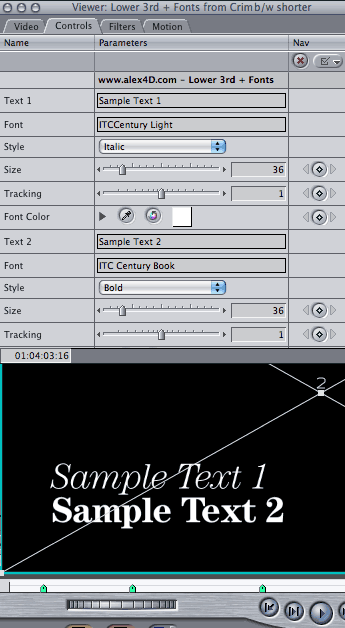
They use the same names as the generators and filter you already know, but with ‘+ fonts’ on the end. They work the same way as before except where there were popup menus for choosing the font, there is a text box for you to enter the name of the font you want to use:

Getting the correct name for the font you want to use

If you want the correct name of the font you want to use, you can copy it from the name shown in the formatting palette in Word:

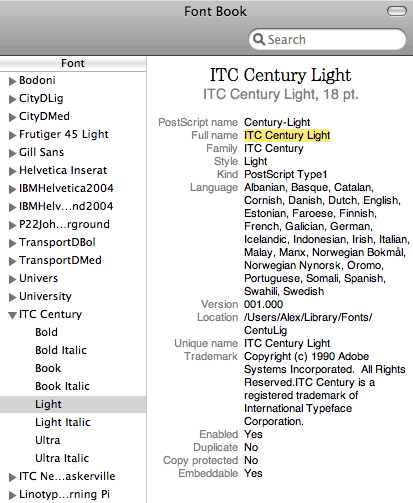
If you don’t have Word, you can use Apple’s Font Book application to get the correct name:
1. Select the font and weight you want to use
2. Choose Show Font Info from the Preview menu
3. Select the black text next to ‘Full name’

4. Use Command-C or choose Copy from the Edit menu to copy the full name of the font

As you can see from the Final Cut Pro screenshot above, both ‘ITCCentury Light’ and ‘ITC Century Light’ are equally valid when entering a name into the font field. However ‘ITCCentury Light Italic’ doesn’t work whereas ‘ITC Century Light Italic’ does.

I’ve tested this with the whole Univers family (eg “Univers 39 Thin Ultra Condensed” and “Univers 85 Extra Black Oblique”), the Helvetica Neue family, and many others – including a font with a very long name: “ITC New Baskerville Bold Small Caps & Old Style Figures”:

Future possibilities

Ideally it would be great if Final Cut’s font menus were more comprehensive, but the menus available to fxScript plugins aren’t. If you visit Andy’s plugin site, you’ll be able to download an improved version of the ‘Text’ generator – he made this fxPlug generator using XCode and a more advanced programming language than fxScript.

I might be able to compile a simple fxPlug filter that does nothing to the video output but simply displays a pop-up of installed fonts and puts the chosen font into a text field that can be copied from within Final Cut… but don’t hold your breath!

My Final Cut home for more plugins and tips

finalcuthomethumbnail

In an article over at Raindance, Stacey Parks lists some tips on how producers can find the actors that will sell their film.

Depressing as it may seem to new writers, directors and producers, the truth is that films are sold based on who stars in them. The presence of other contributors doesn’t matter to 90% of the population and 99.1% of those choosing which DVD to rent on a Saturday night.

If you read the blurb on the back of DVDs, you can tell they are designed for non-fans of film. Most people like to go to the pictures every so often, and it’s nice to watch a movie when there’s nothing on TV. They don’t make a point of following which films are coming out soon, when they’ll be on DVD or when they’ll appear on Pay-TV. Decisions on whether to buy a ticket, rent a DVD or record a film on TV are based on seeing an advert or some bit of PR hours before. No more than that.

If that is so, movies need to have simple two sentence explanations combined with an actor you’ve heard of. This happens for blockbusters right down to low-budget horror movies released straight to DVD (“How about this one? It’s got that blond robot guy from Blade Runner.” “What’s that?” “An old Harrison Ford film from the 80s.” “OK… as long as we get that Meg Ryan DVD… the one with Wolverine.”)

Stacey covers how to work out which actors are right for your film. She covers how to get those actors involved in your project elsewhere (warning, it is a subscription site!), but there is a stage to remember before all that.

The first thing about actors and your film is making sure that actors would want to play the parts in your story. You’ll always be able to find no-name actors to play parts. What about those with existing careers? If you can’t afford to pay their going rate, you’ll need to provide an alternative benefit: a part that showcases their ability, possibly one that shows their range. Maybe the man previously cast in a series of parts as mild-mannered men in a series of mid-life crises might want to show that they can play a charismatic serial killer across the screen from Jodie Foster.

Make sure the ‘star’ role (which might not be the protagonist) gives an experienced actor the chance to show off a wide range of emotions and struggles with difficult decisions. Actors don’t like being ‘reactors’. Colin of The London Script Consultancy said that Dustin Hoffman didn’t use to consider a script unless there were twenty decisions for his character to make.

So when you’re outlining your short or feature, remember to make the major parts worth playing for the actors you hope to recruit. Then you might be able to get it distributed, funded and made.

They say a picture is worth a thousand words. In this case a multi-megabyte video is worth a couple of hundred words:

You can use the motion bar and the filter bar in Clip Keyframes to move all the keyframes in a clip at the same time. You can also move all the audio level keyframes in a clip at the same time using the slip tool on the graph in the viewer.

That doesn’t quite make sense, so take a look at the video in HD mode, which means following the link to the HD video on the Vimeo site. Click the Vimeo logo in the controller bar to go to the page on the site with the HD version. Click the four-arrow icon on the right of the controller bar to scale the video up to 720p.

As a shortcut, you can choose which elements appear in Clip Keyframes mode by control- (or right-) clicking the Toggle Clip Keyframes button in the bottom-left of the Timeline window.

Visit my Final Cut home for more plugins and tips
finalcuthomethumbnail

In the past few years, it has become popular to design short films as pilots for features. I hear directors tell me that they’re making a series of shorts that can add up to a feature. They make a 15 minute short that introduces a world, a set of characters and an event that puts a protagonist in the path of the plan of an antagonist.

The problem with doing all that is the fact that there isn’t an act two following this putative act one is dissatisfying. Not intriguing. Some people found that M. Night Shyamalan’s Unbreakable was irritating because it only covered the first of the traditional three act hero’s journey.

96 minute movies need eight 12 minute sequences. Act one should be made of two of these sequences. By the end of sequence one, the protagonist should be given the option to enter a new world. The fact that they don’t enter it in the start of sequence two shows that they are stuck in their current life.

Maybe it would be a better idea to make a short out of one or both of two sequences not usually included in the feature script, but sequences that the scriptwriter should be able to outline: the story of the protagonist’s fall from grace (how they got to this state of settling for a life of dissatisfied stasis) and the story of how the antagonist came to be (how they became the person/force that eventually will have to come up with the plan that sets the feature story in motion).

These two extra sequences can help writers turn three act feature scripts into ten part video podcast series…

When my friend Matt pointed me to a video showing what sort of moving footage digital stills cameras can record…

…it seemed like an interesting development. A stills camera that records 720p24 footage. If a prosumer camera allows multiple lenses, shallow depth of field with the ability to zoom, why bother with cameras costing £3-5000 from Panasonic and Sony?

Nikon's D90 camera
Nikon’s D90

Prosumers and freelance professionals have become used to having cameras that record production-quality sound with their images. We want at least two XLR inputs with 16-bit 48kHz sound. The D90 has two tiny holes cut into the body where the sound is recorded onto a mic that probably is a part that Nikon pays £1 for.

We have become spoilt. Why use the camera to record the audio. There are two options: use a clapperboard, record separately and sync later, or get another device to trigger the camera to record.

I’d prefer a portable solid-state digital audio recorder that can send out a start signal to the camera (using the D90’s remote control interface) to capture better quality audio. It can have the XLR inputs and the recording medium for the audio. Recordists can enter scene/slate/take info to associate with the audio files. If the camera and the clock in the recorder had the same time and date, you could use this information to sync audio and video (maybe using Apple’s Automator: open files created within the same 5 seconds. Sync based on known frame offset between camera and audio recorder, using scene/slate/take info).

Maybe a software update to a Fostex box might work…

Fostex FR2 Field recorder

This is one of those tips that many people will know about, but for those of use who have used Final Cut for years without knowing it (such as me until three days ago), it is cool:

If you have the Ripple tool selected, hold down the Shift key to temporarily use the Roll tool.
If you have the Roll tool selected, hold down the Shift key to temporarily use the Ripple tool.

If you are rolling multiple edits and want to ripple all of them using the shift key, you might to use presses of the U key to choose which side you’ll be rippling.

This evening I attended a session of Non-Multiplex Cinema‘s ‘Write to Shoot’ course. A ten session course to help writers with a concept, synopsis or initial pages of a script who need the encouragement of a writers group to get that first draft done. As well as a structured course, sessions include scene reviews with writers and actors reading scenes aloud.

Unluckily for me, the usual tutor couldn’t attend this time, so we got a talk about pitching.

1. Sell yourself…
2. then sell the idea

The tutor then said that in the two or three minutes of your pitch, you need to make sure that those you are pitching to know

    Who the characters are (mention two or three, but their names are not important: “Policeman, Student, Shark hunter”).
    Where the story takes place (“In a mining operation on one of the moons of Jupiter”)
    When the events are set (“The week before New Year’s Eve in 1999”)
    What the protagonist wants (“To leave the farm and see the galaxy like his father did”)
    Why the protagonist wants it (“To make up for not helping a boy who grew up to be a disturbed man who commits suicide”)
    How the protagonist plans to get it (“By going on a perilous journey to a far off city to ask a wizard for help”)

You should also establish the stakes (“Winning most important legal case of his life, making sure his son doesn’t move to the other side of the country”).

Going back to item 1 in the list above, “selling yourself”… If you have 5 minutes in all, spend the first 1-2 minutes pitching yourself, who you are. You need to keep it short, clear and therefore memorable.

The tutor in the session asked for use to pitch. None of us volunteered.

He asked us to do a couple of exercises. We were divided into pairs. The first exercise took four minutes. In the first two minutes person A explains who they are to person B. In the second two minutes, person B explains who they are to person A. The tutor then asked each of the ‘person A’s’ to explain who their ‘person B’ was. The second exercise involved each person A telling person B a story. Person B was then asked to recount who their ‘person A’ was and also to re-tell their story.

We all found it easier to tell a larger group of strangers about someone else. It was also easier to be pitching what we remembered of someone else’s tale than our own special projects. It also acted as a reminder: we have to make our pitches clear and simple enough for other people to be able to (and want to) pitch to others further up the chain of command.

After 40 minutes on pitching we spent the rest of the session reading out and commenting on scenes written by attendees. There were four scripts: scenes from a stoner comedy, a political thriller, a horror movie and a sex comedy. All the scenes were a lot better than scene I’ve written in the last year, and it was interesting to hear the other writers, actors and producers give their feedback. I’m sure it was useful for those who submitted their work.