Those of you starting to use Snow Leopard will notice the new QuickTime player.

qtX

Apple markets this as part of QuickTime X. However, it turns out that the new player is a small part of this new version of QuickTime.

As detailed as part of a 23 page technical review of Snow Leopard over at Ars Technica, as with the rest of the OS, most of the changes to QuickTime are hidden from end-users. The first release of QuickTime X is for developers to create new media manipulation applications.

The way Apple does this is through ‘abstraction’ – hiding which software is carrying out requests for applications. For the last few years developers have been asked to use a part of the OS known as QtKit instead of QuickTime 7. In earlier versions of OS X QtKit called QuickTime 7 to perform operations. In OS 10.6 Snow Leopard some operations are carried out by QuickTime X while most are still performed by QuickTime 7. As future versions of OS X are released, more of the application requests will be carried out by QuickTime X.
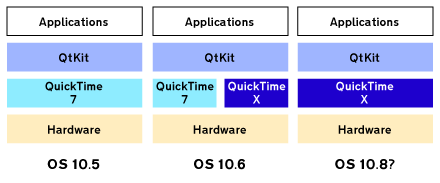
qt7X

A wider advantage of Snow Leopard is that more of the OS is 64-bit compatible. The advantages won’t be immediately apparent for most users. This release (and the fact that it doesn’t cost very much to upgrade) is to encourage developers to create 64-bit applications and drivers. The eventual benefits will be access to virtually unlimited amounts of memory and much better processor performance.

For more on the 18 year history of QuickTime, the advantages provided by QuickTime X and how the 32-bit Final Cut Studio suite fits into the picture, read the QuickTime page of the Snow Leopard review over at Ars Technica.

null

For more on the QuickTime X player, QuickTime 7 player in Snow Leopard and the question of Pro feature unlocking, there’s another page of the Ars Technica review on these subjects.

This is an alternative to Final Cut’s crop section of the Motion tab.

This blog post used to host version 1 of my Crop plugin. I’ve updated it, so now you can download version 1.1.

When you blur the crop using the Edge Feather control, it only adds the feathering to the edges you crop. The built-in crop feathers all edges.

crop_1_result

Here are the controls:
crop_1_settings

You can also invert the crop, so that the area removed is inside the area defined by the slider values. You can also choose the have different feather values for each edge:
crop_2_result
…the result of these settings:
crop_2_settings

Download Alex4D Crop
To use this plugin, download the ZIP document, copy the ‘Alex4D Crop.fcfcc’ file to

Your Startup HD/Library/Application Support/Final Cut Pro System Support/Plugins

(Your Startup HD/Users/your name/Library/Application Support/Final Cut Express Support/Plugins for Final Cut Express users)

‘Alex4D Crop’ will appear in the ‘Matte’ filter category.

Visit my Final Cut home for more plugins and tips
finalcuthomethumbnail

In which I list the location of the FxScript code that implements Final Cut Pro slates, countdowns and more.

Although many people have moved over to file-based content delivery, some still need to output to tape from Final Cut Pro 6 and 7. When you use Print to Video, you can choose to display a slate showing the name of the sequence to come and a built-in countdown.

If you have the developer tools installed on your mac (an optional install found on the OS X install DVD), you can modify the way the slate information and countdown look. They are implemented using FxScript, Final Cut’s plugin scripting language.

1. Control- (or Right-) click Final Cut Pro [6 or 7]
2. Choose ‘Show Package Contents’ from the pop-up menu
3. Navigate to Contents:Resources:English.lproj
4. Double-click ‘Localized.plist’
5. In The Property List Editor (from the developer tools install) open Root:STRL:8501 for the slate, Root:STRL:8502 for the countdown.

countdown_script

Here you can see the script specifies Italic text, chooses a size (relative to the sequence size), selects a colour to draw the type with, and draws ‘FinalCutPro’ to the top and bottom of the screen.

If you want to risk changing the script here, it will probably modify the countdown shown when printing to tape. It is probably a good idea not to add any items in either list, but as FxScript allows multiple commands on a line (separated by ;s), you have have space to insert your alternate code.

8505 – What to display when a clip is unrendered
8508 – What to display when a clip is offline

After writing about using Automator to perform repetitive tasks in Final Cut, I found a post in Andy Mees’ blog about a more flexible dedicated utility.

spark-screen

Spark can assign your own keyboard shortcuts to play Applescripts, menu commands, and series of keystrokes. Andy gives a few suggestions – including the Avid-like ‘Top’ and ‘Tail’ commands: roll the in or out point of the current clip to the playhead.

While you’re on Andy’s site, don’t forget to check out his free Final Cut plugins.

In which I provide an improved text crawl effect for Final Cut range of applications.

I created this plugin in response to a question in Larry Jordan’s monthly Final Cut Pro newsletter. Someone pointed out that the Text Crawl generator built into Final Cut Pro had a limit on how much text in can move across the screen.

[Note that generators aren’t limited to a 2 minute duration. If you change the duration in the Viewer before you add them to the timeline, they can be any length.]

crawl-screen-440

As well as removing the text limitation, I added more features: shadow, background and animation controls.

crawl_all

Controls: section by section

crawl_font

If the font you want to use doesn’t appear in the font menu, you can type its name in the ‘Other’ field. See a previous post for methods of finding the exact name of the font you want to use.

Note that the plugin will ignore any font you then choose using the menu until you delete the name of the font named in the ‘Other’ field.

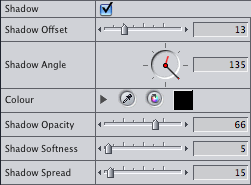
crawl_shadow

If you set the Shadow Offset to 0 and set a value for Shadow Spread, your text is outlined.

crawl_layout

The Text baseline ranges from 0 (the top of the screen) to 100 (the bottom). The Solid Height and offset give control over the size of the background of the text. If the Solid Horizontal % is 100, there is no gradient fill. The Gradient Centre ranges from 0 (the left of the screen) to 100 (the right of the screen).

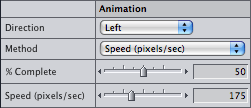
crawl_animation

As well as animating the text so that it is all animated across the screen over the duration of the generator (Method ‘From In to Out’), you can also keyframe the ‘% Complete’ value (see this post for how to do this), or set the speed of the text to a specific number of pixels per second.

The Shadow settings can produce results like this:
crawl-screen-alt-crop
…using these settings for Shadow Angle, Softness and Spread:
crawl_alt

Here’s a demo video:

Note that this plugin does not stop you from choosing terrible colour combinations for text, shadow and background colour.

Download Alex4D Crawl
Download: Alex4D Crawl.

Copy the ‘Alex4D Crawl.fcfcc’ file into one of two places on your computer:

Your Startup HD/Library/Application Support/Final Cut Pro System Support/Plugins
or
Your Startup HD/Users/your name/Library/Preferences/Final Cut Pro User Data/Plugins/

(Your Startup HD/Users/your name/Library/Application Support/Final Cut Express Support/Plugins for Final Cut Express users)

Restart Final Cut, and you’ll see the generator in the ‘Text’ section of ‘Video Generators’

Visit my Final Cut home for more plugins and tips
finalcuthomethumbnail

In which I provide a free Final Cut generator that adds opacity controls to the built-in Custom Gradient generator.

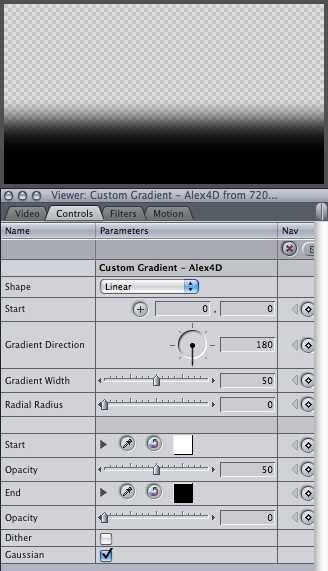
While working on my next plugin, I needed a reliable way of creating gradients with opacity controls on the start and finish colours. Here’s Custom Gradient – Alex4D:
custom_gradient_default

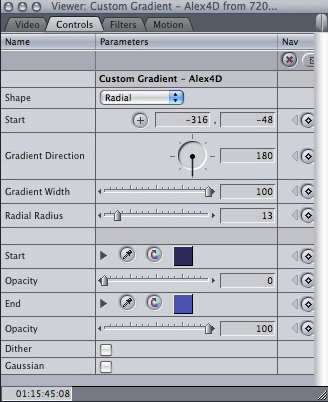
I also added a radius control for the radial gradients:
custom_gradient_rad_screen
custom_gradient_rad_settings

Download Custom Gradient - Alex4D
To use this plugin, download the ZIP document, copy the ‘Custom Gradient – Alex4D.txt’ file to

Your Startup HD/Library/Application Support/Final Cut Pro System Support/Plugins

(Your Startup HD/Users/your name/Library/Application Support/Final Cut Express Support/Plugins for Final Cut Express users)

This plugin is a Video Generator. It will appear in the ‘Render’ category.

Visit my Final Cut home for more plugins and tips
finalcuthomethumbnail

Over at the CreativeCow.net Final Cut forum David Fu asked this question:

Is there a way to make the final cut thumbnail preview in the Browser preview a different frame other than the very first frame? The editing assistant was capturing the last frame of each previous take to the new take thus every thumbnail is not indicating what is in the take. Or is there a way to batch remove the first frame out of every video clip? (There woud be close to 1000).

The thumbnail preview can be set to any frame in your clip. It is known as the Poster frame. You can set it in the Viewer using the command in the Mark menu, or press Control-P. You can also set it in large icon view. Scrub through the content within the thumbnail using the hand tool (Control-H or hh or Shift-Control). If you have added the Thumbnail column to your text browser view (Control-click a heading), you can scrub through the clip without choosing the hand tool first. Hold down the Control key while dragging left and right – release the Control key when the thumbnail is showing the frame you’d like.

There’s no Final Cut way of doing this to 1000 clips very quickly.

There are two directions you could go:

1. Export an XML of the clips you want to modify and use another application to modify all the in points of the clips and re-import the XML as a new project (Final Cut’s XML format doesn’t include Poster frame information, so you’ll have to use the fact that the default poster frame is the in point).

2. Use a keyboard and mouse recording app to record the operations to change the In points or Poster frame of one clip, and modify the macro to virtually press the keys 20 or 100 times. QuicKeys would be best, but I managed to use Apple’s free Automator application to do the job:
a. With the browser window open, and your first clip selected, start Automator
b. In the main Automator window choose a Custom workflow
c. Make sure the browser window is visible on screen
d. Press the Record button in the Automator window to start a ‘Watch Me Do’ action. The following needs to be done quickly as Automator records in real time.
e. Press Return (opens the clip in the Viewer)
f. Press Shift-I (jump to in point)
g. Press the right cursor key (to move to the next frame, or Shift right cursor key to move 1 second on from the in point)
h. Press Control-P (To set the poster frame)
i. Press command-4 (To bring the browser to the front)
j. Press the down cursor key (to select the next clip down in the browser)
k. Find the floating Automator window and press the stop button

You now have an Automator action that brings FCP to the front, sets the poster frame of the currently selected clip and moves to the next selected clip. We can now duplicate that action in Automator, remove the command to bring FCP to the front. This new action will set the poster frame of the currently selected clip. You can then duplicate this action as many times as you like.

automator_section
Click to see the Automator window showing the full workflow

l. In Automator, save your workflow as ‘Increment clip poster frames’
m. Select the Watch Me Do action and set the Playback Speed to 10x which speeds up the key presses
n. Select all the events and set the Timeout to 0.0 seconds
o. Duplicate the first Action using Duplicate from the Edit menu
p. In the duplicate Action, select the ‘Bring the window “Browser” to the front.” event and delete it with the delete key
q. You now have an action you can duplicate as many times as you’d like the ‘Change the poster frame of the currently selected clip in the browser’ to repeat.
r. Save your workflow again.
s. In the browser, select the first of the clips you’d like to modify
t. Back in Automator, press the Run button to see your actions performed.

[- If you aren’t sure about pressing the keys fast enough, you could use a special keyboard layout in FCP to assign those actions to a series of keys on the keyboard!]

It is possible to use this free utility on your computer to do this, but you’d get a lot more control if you use QuicKeys from Startly – which costs $60.

I hardly ever use text crawls to create on-screen ‘news ticker’ effects, so I’ve never came up against the limitation mentioned in the July edition of Larry Jordan’s Final Cut Studio newsletter:

crawls will only show 2 minutes worth of text, no matter how long you make them in the Viewer.

This is due to a limitation in FxScript, the Final Cut language that implements most filters, transitions and generators. You cannot draw any text that is wider than 32767 pixels wide. Even if your video is only 1920 pixels wide, in order to move the text past the screen, the generator draws all the text for each frame, moving it a little each frame.

I’ve fixed that limitation in a new version of Text Crawl. I’ve also added the ability to animate based on a keyframe value and at specific speeds (as well as the usual from in to out), also if a font you want to use doesn’t appear in the menu, you can type its name into the ‘Other Font’ field:

crawl_Alex4D_suggestions

Before I release this, I’m wondering what other features you would like. Add a comment below, and I’ll see what I can do.

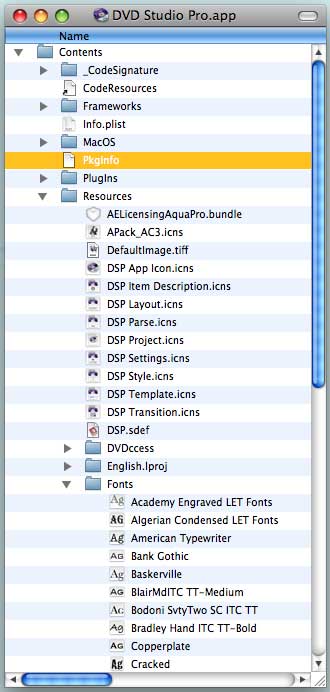
As Final Cut Studio comes with an optional install of templates for DVD Studio Pro, the application itself has fonts built-in to match the templates.

dvdsp_freefonts

You can open up DVD Studio Pro and install these fonts in your system so you can use them in any other application:

    — Control- (or Right-) click its icon and choose ‘Show Package Contents’ from the shortcut menu.
    — Navigate so that the Fonts folder is visible.

dvdsp_freefonts_loc

    — Open the Font Book application.
    — Drag the Fonts folder icon from inside DVD Studio Pro to the Fonts panel in the main Font Book window

The html-based documentation in Final Cut Studio applications is convenient to access and simple for Apple to keep updated. However Apple’s Help Viewer can be slow to show pages.

If you have the new Final Cut Studio installed, copy and bookmark these links to access the help systems using your favourite browser. Make sure you select the whole link, this blog can’t display multi-line links. Drag from the start of the link to the following blank line to make sure the whole link is selected – they all end with ‘index.html’

Final Cut Pro
file:///Applications/Final Cut Pro.app/Contents/Resources/English.lproj/finalcutpro_help/index.html

Motion
file:///Applications/Motion.app/Contents/Resources/English.lproj/motion_help/index.html

Soundtrack Pro
file:///Applications/Soundtrack Pro.app/Contents/Resources/English.lproj/soundtrackpro_help/en/soundtrackpro/usermanual/index.html

Soundtrack Pro Effects Reference
file:///Applications/Soundtrack Pro.app/Contents/Resources/English.lproj/soundtrackpro_help/en/soundtrackpro/effectsreference/index.html

Compressor
file:///Applications/Compressor.app/Contents/Resources/English.lproj/compressor_help/index.html

DVD Studio Pro
file:///Applications/DVD Studio Pro.app/Contents/Resources/English.lproj/dvdstudiopro_help/en/dvdstudiopro/usermanual/index.html

Color
file:///Applications/Color.app/Contents/Resources/English.lproj/color_help/en/color/usermanual/index.html

Cinema Tools
file:///Applications/Cinema Tools.app/Contents/Resources/English.lproj/cinematools_help/en/cinematools/usermanual/index.html