This Final Cut Pro X title generator helps you apply effect, opacity and transformation changes to multiple clips at once.

It is named after a feature of Adobe After Effects – a compositing application that is used to animate graphics and video. If you have twenty or thirty layers in a project, if you an ‘adjustment layer’ above them, any effects applied to the layer are applied to all the layers below at once.

‘Alex4D Adjustment Layer’ is a title generator works in the same way in Final Cut Pro X. Once you add it to a project any changes you make to the title are applied to all the layers below. If you add a blur effect, all the layers below are blurred. If you use the transform controls to change the scale and position, the combined result of what the lower layers look like will be repositioned and have their scale changed.

Read More

These effects give you more control over how you change the playback speed of clips in Final Cut Pro X. They are a set of generators that give you animation graph control over which frame is being displayed of a source clip.

November 2012 update: The 10.0.6 update to Final Cut Pro X has broken these generators – they only work in 10.0.4 and 10.0.5.. This is because the way motion templates handle drop zone clips has changed. Sorry!

March 2013 up-update: I’ve created an effect that replaces these generators for Final Cut Pro 10.0.6 and newer. Go to its post to find out more.

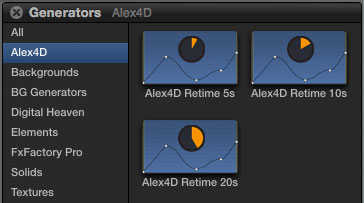
Once installed, the three generators appear in the Alex4D section of the Generators browser:

Read More

These effects improve on my first Final Cut Pro X effect, ‘Mask 8 Points.’

The current version of Final Cut doesn’t allow keyframing of mask shape co-ordinates in effects. These effects (which come in 4, 8 and 16 point variants) add transform controls to the mask (like my 8-point matte effect for Final Cut Pro 7).

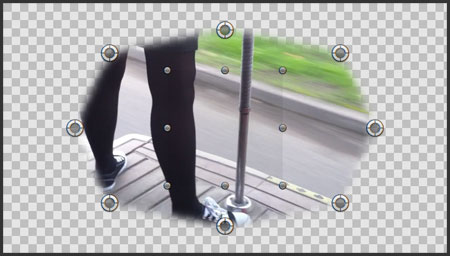
The default effect:

The effect of the default settings for Alex Mask+ 8

With the mask points scaled, repositioned and rotated:

Drag the transform control to reposition the mask, drag on an edge to scale, drag on a corner to rotate.

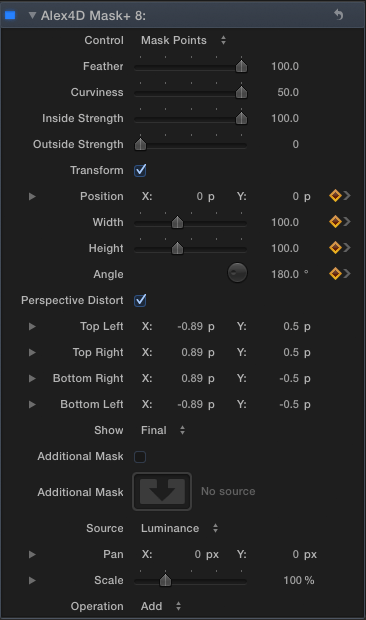
Here are the controls:

Read More

This Final Cut Pro X effect adds shadows to clips with transparent areas (or clips scaled down using Alex4D Curve Scale). It has an on-screen control that sets position and blurriness:

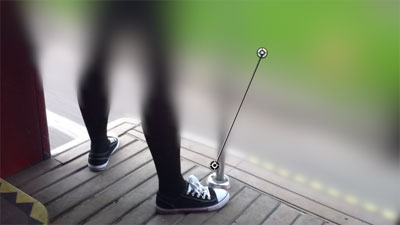
Drag the centre of the control to choose the position of the shadow, drag the outer circle to increase or decrease the softness of the shadow.

It also has the option to create ‘internal’ shadows:

You can also scale the shadow to create subtle perspective effects.

Read More

Short version

If you make a clip into a single angle multicam clip, you can use the clip as normal. If you then open the clip in the angle editor and modify it there (use the transform tools, colour correct, modify effects), you’ll see the changes you make everywhere the multicam version of the clip is used – even in multiple timelines at once.

Long version

This tip uses the new multicam clip feature of Final Cut Pro X that was introduced in the 10.0.3 update.

Multicam clips are designed to synchronize multiple camera angles of the same physical actions. You can then use these clips in projects – switching between angles in the same clip on the timeline.

One of the interesting features of multicam clips is that you can edit the angles – changing the sync between clips, add angles, edit audio tracks and add effects to individual angles. Once you make these changes, the modifications are available to each instance of the multicam clip on the timeline.

This is would be a useful feature for single clips too.

Read More

Following on from yesterday’s post on why some titles are now less flexible to use in version 10.0.3, here’s a ZIP archive of a version of ‘Four Corners’ that allows you do move the Title and Subtitle to different locations in the title inspector.

Download this ZIP archive, and install the folder in Movies / Motion Templates / Titles /

A couple of changes in Final Cut Pro 10.0.3 seem to be in response to user problems. Instead of having a transition media preference, FCP X makes sure storyline length isn’t changed when a transition is applied – warning if there isn’t enough media in the clip to apply the clip.

The new keyframing method is that if you have set a keyframe for a parameter at a given time and you go on to change the value of that parameter at a different time, FCP adds a keyframe. Before 10.0.3 FCP would apply the change in parameter to all the keyframes of that parameter at the same time.

Unfortunately this causes problems for some title generators – including the ones supplied with Final Cut.

To use ‘Overlap’ as an example, you might want to reposition the position of the two text elements:
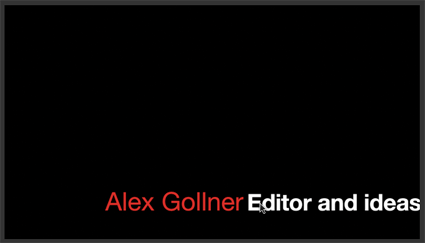
You can do this by dragging the origin controls for each text element:
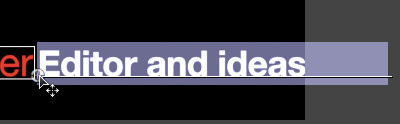

This worked perfectly well in versions up to 10.0.3, but the new keyframing method causes a problem – if you play the title after repositioning the text elements, they move from where they originally were to your new position and back again. It turns out that moving title text elements adds keyframes to their position parameters. In 10.0-10.0.2 moving title text elements would reposition all the keyframes at the same time.

That means some title generators that have text elements that people are likely to want to move need to be remade so that they animate using Motion behaviours instead of keyframes.

In the case of ‘Overlap’ I’ve modified the built-in Motion template so moving the text elements shouldn’t be a problem. If you use the Build In and Build Out options, the text will start in the same places and finish in the same places, but you can choose where text stays while the title is being shown.

Read More

These seven blur and sharpen effects have been available to Motion 5 users for a while, you can now download versions that work in Final Cut Pro.

Gradient Blur

This effect applies a blur gradually between two points:

Circle Blur

This effect applies a blur inside a circle. Use the on-screen controls to define the position and size of the circle:

Five more effects after the jump… Read More

Due to a change in the way Motion renders some title generators (Final Cut Pro has Motion’s rendering software built in), changing their opacity will effect all the footage below the text.

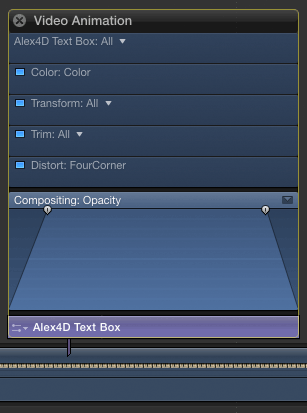
Instead of using fade in and fade out controls in titles, some people like to use adjust the opacity parameter using the Video Animation curve editor. However, if you use a graph like this…

…in the frame before the title generator, the main storyline is fully visible. On the first frame that is overlayed by the title, the 0% opacity value is applied to the storyline as well – producing a black screen. As the opacity rises to 100%, the video and the title fade back up.

Read More