Archive

final cut pro

As Final Cut Studio comes with an optional install of templates for DVD Studio Pro, the application itself has fonts built-in to match the templates.

dvdsp_freefonts

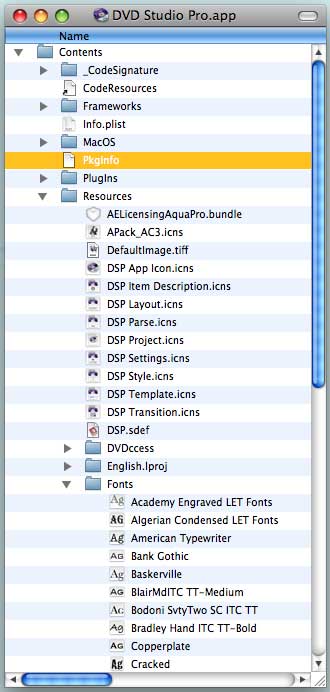
You can open up DVD Studio Pro and install these fonts in your system so you can use them in any other application:

    — Control- (or Right-) click its icon and choose ‘Show Package Contents’ from the shortcut menu.
    — Navigate so that the Fonts folder is visible.

dvdsp_freefonts_loc

    — Open the Font Book application.
    — Drag the Fonts folder icon from inside DVD Studio Pro to the Fonts panel in the main Font Book window

The html-based documentation in Final Cut Studio applications is convenient to access and simple for Apple to keep updated. However Apple’s Help Viewer can be slow to show pages.

If you have the new Final Cut Studio installed, copy and bookmark these links to access the help systems using your favourite browser. Make sure you select the whole link, this blog can’t display multi-line links. Drag from the start of the link to the following blank line to make sure the whole link is selected – they all end with ‘index.html’

Final Cut Pro
file:///Applications/Final Cut Pro.app/Contents/Resources/English.lproj/finalcutpro_help/index.html

Motion
file:///Applications/Motion.app/Contents/Resources/English.lproj/motion_help/index.html

Soundtrack Pro
file:///Applications/Soundtrack Pro.app/Contents/Resources/English.lproj/soundtrackpro_help/en/soundtrackpro/usermanual/index.html

Soundtrack Pro Effects Reference
file:///Applications/Soundtrack Pro.app/Contents/Resources/English.lproj/soundtrackpro_help/en/soundtrackpro/effectsreference/index.html

Compressor
file:///Applications/Compressor.app/Contents/Resources/English.lproj/compressor_help/index.html

DVD Studio Pro
file:///Applications/DVD Studio Pro.app/Contents/Resources/English.lproj/dvdstudiopro_help/en/dvdstudiopro/usermanual/index.html

Color
file:///Applications/Color.app/Contents/Resources/English.lproj/color_help/en/color/usermanual/index.html

Cinema Tools
file:///Applications/Cinema Tools.app/Contents/Resources/English.lproj/cinematools_help/en/cinematools/usermanual/index.html

Not sure how useful this is, but this might help when friends from elsewhere would like to use your copy of Final Cut Studio on your machine. At the very least, this offers up an opportunity for pranks.

If you go to System Preferences and select the International panel and move another country up to the top of the list, the next time you open any Final Cut Studio application, the user interface will be displayed in the new country’s language:

fcs_int_0_choose_chinese

As Chinese is at the top of the list, the UI of many Apple applications will be in Chinese. Final Cut Studio also has German, French and Japanese built in:
fcs_int_1

fcs_int_2

fcs_int_3

fcs_int_4a

I wonder if the Chinese version of Bruce is even more inscrutable than the English-speaking one…

Here is a 15 minute tutorial showing the whole process – from extracting the help system from Final Cut to compiling the document in TextEdit:

null

I deleted 4-5 minutes of waiting for content to be inserted and pasted (on my MacBook Pro), so it shouldn’t take more than 20 minutes to finish. It’ll be faster if you have Pages from Apple’s iWork suite, or can still use the free trial period.

See my previous post for instructions:
1. Create a copy of the documentation system and make all hidden text visible. Creating a version that can be viewed in your favourite web browser.
2. Combine the 3,500 html and graphics files together in a single document.

You can do the same for the other applications in Final Cut Studio. Here are the locations for the help systems for each of them.

Visit my Final Cut home for more plugins and tips
finalcuthomethumbnail

Final Cut Pro 7 comes with an html-based help system. Many people like to have a single document as a manual. Such a thing is not yet available for Final Cut Pro 7. As Apple own the copyright in the manual, those that have created a single document version cannot legally distribute it. However, if you own Final Cut Pro 7, you can use these instructions to make your own manual:
diy_fcp7_manual

You will first make all the content visible using TextWrangler from Bare Bones Software, and then combine the whole help system into a single document using Pages, Apple’s word processing application – which is part of iWork.

The trial version of Pages was probably installed with OS X on your machine. However after trying it for 30 days (after you first start iWorks), the trial version cannot save or print documents, so if your trial period is up, additional instructions follow.

The only parts of the manual that don’t transfer well are a few tables. The links no longer work, but you can copy the linked text and find it pretty quickly.

Make all content visible

When you first go to a section with disclosure arrows, they default to being closed:

fcp7_manual-b4

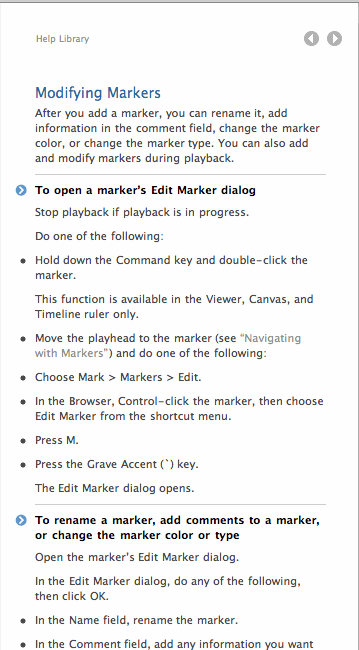
This means you have to click each blue arrow, or the words next to each arrow, to see what is hidden:
fcp7_manual-during

To have a version of your documentation that defaults to all the information being visible, you need to change the source HTML of the files. You need to rename all instances of “TaskContentBox” to “TaskContentBox-open” in all the .html files in the help system.

    — Create a copy of the documentation built into FCP7: Control-click the Final Cut Pro application, choose ‘Show Package Contents’ from the shortcut menu
    — In the new window that shows the content of FCP, navigate to “Contents:Resources:English.lproj”
    — Create a copy of the “finalcutpro_help” folder by dragging it elsewhere on your Mac, outside the Final Cut Pro window
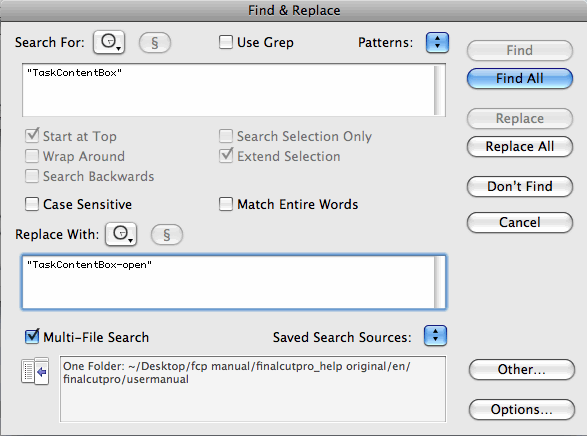
    — Start “TextWrangler” and choose “Find…” from the “Search” menu
    — Switch back to the Finder while Text Wrangler is still open and navigate to where you created the copy of the FCP help system, navigate inside to “en/finalcutpro” and drag the “usermanual” icon to the “Multi-File Search” area of the TextWrangler Find dialogue box.
    — Search for “TaskContentBox” (including the quote marks)
    — Replace With “TaskContentBox-open” (again including the quote marks)
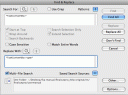
    — Click “Replace All”

doc_find_n_replace2

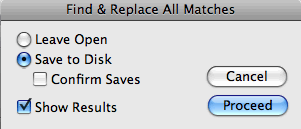
    — Make sure the confirmation dialogue looks like this:
    doc_confirm
    i.e. Don’t Confirm Saves
    — After a short while 698 of your help files will have been modified.
    — Quit out of TextWrangler
    — Go to the top level of the “finalcutpro_help” folder and drag the “index.html” icon to your browser application.

You now have a help system will default to all the information being visible, and it displays more quickly in a browser than Apple Help Viewer.

Combine into a single document

    — Start Pages with a ‘File:New’ blank word processing document.
    — Go to the ‘Insert’ menu and use the ‘Choose…’ command
    — Navigate to where you put your copy of the ‘finalcutpro_help’ manual
    — Navigate to “finalcutpro_help:en:finalcutpro:usermanual” to see a list of all the html files in the documentation system
    — Make sure it is sorted by name
    — Click ‘chapter_preface_section_0.html’
    — Shift-click ‘chapter_preface_section_3.html’ to select the four preface files.
    — Click the ‘Insert’ button
    — Again ‘Insert:Choose…’
    — Select from ‘chapter_1_section_0.html’ to ‘chapter_glossary_section_0.html’
    — Click the ‘Insert’ button
    — You might also want to use the ‘Edit:Find:Find…’ to search for all instances of ‘Copyright © Apple Inc. All rights reserved.’ and replace them with nothing.

If you have a trial version of Pages (a free download from Apple) but you have used it for more than 30 days, you won’t be able to save or print. However, you can copy text and pictures from documents in Pages and paste them into TextEdit documents.

My trial version of Pages ’08 couldn’t deal with copying 50MB to the system clipboard and crashed, so I’ve modified the instructions by copying from Pages into a single TextEdit document in three stages:

    — Insert ‘chapter_1_section_0.html’ to ‘chapter_glossary_section_0.html’ followed by ‘chapter_1_section_0.html’ to chapter_40_section_15.html’ only.
    — Use the ‘Edit:Find:Find…’ command to search for all instances of ‘Copyright © Apple Inc. All rights reserved.’ and replace them with nothing.
    — Use ‘Edit:Select All’ and ‘Edit:Copy’ to copy all the text and pictures.
    — Create a new document in TextEdit.
    — ‘Edit:Paste’ into the new document.
    — Save the new document as ‘Final Cut Pro 7 manual’
    — To simplify the clipboard, select a single word in the TextEdit document and ‘Edit:Copy’ it.
    — Switch back to Pages, close the current document
    — Start a ‘File:New’ blank word processing document
    — ‘Insert:Choose…’ ‘chapter_41_section_0.html’ to chapter_69_section_14.html’
    — Use the ‘Edit:Find:Find…’ command to search for all instances of ‘Copyright © Apple Inc. All rights reserved.’ and replace them with nothing.
    — ‘Edit:Select All’ ‘Edit:Copy’
    — Switch to the ‘Final Cut Pro 7 manual’ document in TextEdit.
    — ‘Edit:Paste’ ‘File:Save’
    — To simplify the clipboard, select a single word in the’Final Cut Pro 7 manual’ document and ‘Edit:Copy’ it.
    — Switch back to Pages, close the current document
    — Start a ‘File:New’ blank word processing document
    — ‘Insert:Choose…’ ‘chapter_70_section_0.html’ to chapter_glossary_section_0.html’
    — Use the ‘Edit:Find:Find…’ command to search for all instances of ‘Copyright © Apple Inc. All rights reserved.’ and replace them with nothing.
    — ‘Edit:Select All’ ‘Edit:Copy’
    — Switch to the ‘Final Cut Pro 7 manual’ document in TextEdit.
    — ‘Edit:Paste’ ‘File:Save’

This document should act as a stop-gap until Apple add an official one to the help system. If you want to feedback to Apple that you’d like the documentation system changed, visit this page on the Apple site.

If you’d like to make similar single-document manuals for other applications in Final Cut Studio, their locations are listed in this post.

Visit my Final Cut home for more plugins and tips

finalcuthomethumbnail

The FCP7 documentation system isn’t great, but there is a way of reducing many of your clicks. When you first go to a section with disclosure arrows, they default to being closed:

fcp7_manual-b4

This means you have to click each blue arrow, or the words next to each arrow, to see what is hidden:

fcp7_manual-during

To have a version of your documentation that defaults to all the information being visible, you need to change the source HTML of the files. You need to rename all instances of “TaskContentBox” to “TaskContentBox-open” in all the .html files in the help system.

doc_find_n_replace2
Click to see the Find and Replace using Bare Bones’ free TextWrangler software

    1. Create a copy of the documentation built into FCP7: Control-click the Final Cut Pro application, choose ‘Show Package Contents’ from the shortcut menu
    2. In the new window that shows the content of FCP, navigate to “Contents:Resources:English.lproj”
    3. Create a copy of the “finalcutpro_help” folder by dragging it elsewhere on your Mac, outside the Final Cut Pro window
    5. Start “TextWrangler” and choose “Find…” from the “Search” menu
    6. In a Finder window, navigate to where you created the copy of the FCP help system, navigate inside to “en/finalcutpro” and drag the “usermanual” icon to the “Multi-File Search” area.
    7. Search for “TaskContentBox” (including the quote marks)
    8. Replace With “TaskContentBox-open” (again including the quote marks)
    9. Click “Replace All”
    10. Make sure the confirmation dialogue looks like this:
    doc_confirm
    i.e. Don’t Confirm Saves
    11. After a short while 698 of your help files will have been modified.
    12. Quit out of TextWrangler
    13. Go to the top level of the “finalcutpro_help” folder and open the “index.html” folder in Safari. Whichever section you go to in the help system will default to all the information being visible.

Visit my Final Cut home for more plugins and tips
finalcuthomethumbnail

In Final Cut Pro 7, you can control playback while you edit marker information. To start and stop, you use Control-Space Bar. There are a few more shortcuts that are useful and one that works when you aren’t editing a marker.

jumpback_play

It is useful for when you are reviewing your work: to jump back in units of the Pre-Roll value, press Control-Command-Space Bar. The advantage with this as opposed to Shift-Back Arrow to move back 1 second is that shortcut stops playback. With this Pre-Roll Back command, the sequence keeps playing from the earlier point.

To set the Pre-Roll value, go to the Editing tab of the User Preferences window (from the ‘Final Cut Pro’ menu):
setpreroll

This is good if you want to do ‘one last review’ of the edit you’ve just finished and go on from there. It also is helpful if you think you’ve missed something.

FCP7’s Timecode Viewer is straightforward when playing the sequence in the Canvas, it displays the timecode and the name of the sequence playing.

There are more options when you are looking at footage in the Viewer if you Control- or Right- click the timecode:
tc_viewer_aux

You can choose whether to show timecode with frames (useful when clients insist on changing edits by the frame – if they can’t see how many frames you’ve moved the edit, they have to review the edit on it’s own merit). You can also show AUX 1 and or AUX 2 timecode.

In this case, AUX 1 is running at 50 fps, and AUX 2 represents the audio sync timecode.

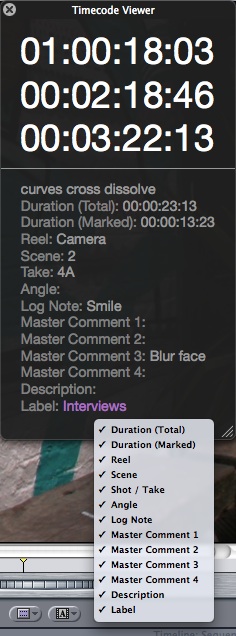
You can also show selected fields from the browser by Control- or Right- clicking the clip name:
tc_viewer_options

To change the size of the text, drag the divider between the timecode and the text.

One of the great features of the new Final Cut Studio is the new members of the ProRes family. The one I’m using first is ProRes 4444. It provides almost ‘Animation’ codec quality at much smaller file sizes. Final Cut Pro 6’s ProRes 422 and ProRes 422(HQ) are great quality, but they don’t store the colour value of every single pixel of every single frame. If they did, they would be called ProRes 444. Apple went further with this new codec and added a transparency information for each pixel too – the fourth ‘4’ in the name.

But each time Apple brings out cool new codecs to work with new workflows or cameras, post-production people have a dilemma. We can use footage encoded this way internally, but what happens when you need to share with others?

Before I upgraded to version 7, ‘travelling’ Matt Davis sent me some ProRes 4444 footage with an alpha channel. It played perfectly well on my 6.0.6 timeline with QuickTime 7.6.2 installed.

Good news also if you need to transfer ProRes 4444 footage from your version 7 timeline: QuickTime 7.6.2 has the playback part of ProRes 4444 built-in.

This means you don’t have to send other people the codec for them to see your footage. If they cannot play it, advise them to update their copy of QuickTime.

alpha_t_in_6

Alpha Transition is being marketed as one of the major new features of Final Cut Pro 7. It allows you to use a third clip as a transition between two existing clips. It uses the transparent parts of the transition clip, so that makes it an alpha transition.

This Alpha Transition effect is implemented in FxScript, Final Cut’s plugin scripting language. Which, as the language hasn’t changed, means that the effect also works in earlier versions. Probably back to version 5.1.

So if you know your version 7 project might need to be finished on a 6.X system, you can export as XML as usual, and use the Alpha Transition plugin by installing it on the older system.

Note that Apple’s license agreement may not allow you to do this (even though the transition is implemented using mere 5.62K of FxScript), but if you use 6 and 7 on your computers and 7 was upgraded from your copy of 6, you are probably bending (if not breaking) the rules already.

It should also work in Final Cut Express, but as I don’t have a copy, I can’t confirm that.

To learn more about the effect, check out the tutorial on the Ripple Training site:
ripple_tut

Apple also supply free alpha transition movies on the Final Cut Studio resources page: [760MB Zip file]