Archive

Yearly Archives: 2012

Judging by the user interface of Final Cut Pro X and MacOS X Lion, it seems that Apple want to move us away from accessing complex file systems and letting us manage our projects from within full-screen applications.

If this so, the way that Final Cut works with effects and helper applications will have to change. For now Motion-created effects, titles, transitions and templates must be installed in special folders in the Movies folder in the home folder. If we need to import Final Cut Pro 7 timelines or export clips to Motion or After Effects, we have to run separate apps.

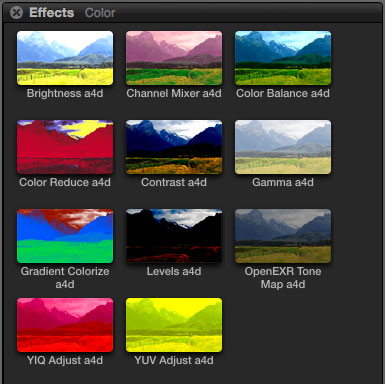
In the case of effects, transitions and titles, there are ways user interface could be improved.

Inside Final Cut Pro itself is the best place to manage effects.
Read More

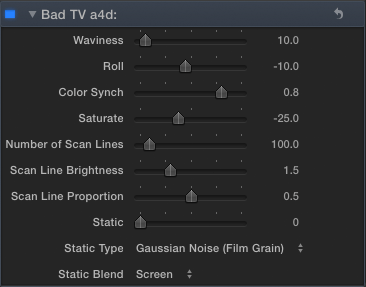
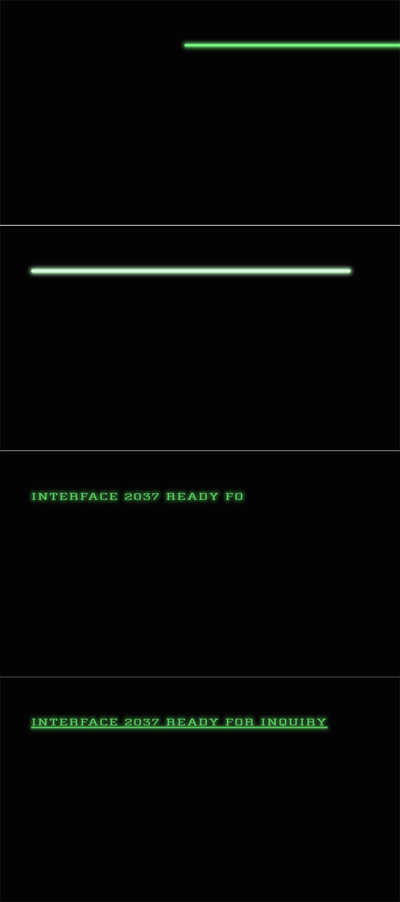
There is a version of Bad TV in Final Cut Pro X, but the version available in Motion has more controls. I’ve produced Bad TV a4d:

Here are some examples of different looks using the effect:

Here are the controls:

Read More

Here are some more Final Cut Pro X effects based on those available in Motion 5.

Black Hole

Your clip is dragged to a single point.


1. Default settings
2. Different control point, Amount: 700

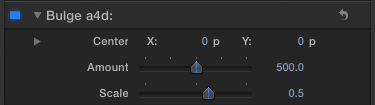
Bulge

Your clip is pushed to or from a point.


Read More

Final Cut Pro X can use clips with non-square pixel aspect ratios. However if QuickTime movies don’t have the correct flags set internally, there is no way to tell Final Cut that a clip’s pixels are anamorphic.

In Europe since the late 90s the majority of standard definition video has designed to be viewed on widescreen TVs. Instead of coming up with a new TV standard, a signal was added to broadcasts that told TVs to stretch the source 720 pixel-wide image from an old-style 4:3 image to a modern 16:9 widescreen image. This is the ‘anamorphic flag.’

Many QuickTime manipulation applications don’t set the anamorphic flag on clips, which means that Final Cut doesn’t show the clip in 16:9 widescreen – the clip displays as 4:3 so everything looks tall and thin. In Final Cut Pro 7 and earlier there was a quick way to define clips as having anamorphic pixels, that feature isn’t available in Final Cut Pro X yet.

There are two strategies to fix this: use an application to re-encode the clip that sets the anamorphic flag correctly, or use an app that can manipulate settings within clips without any re-encoding.

Read More

This Final Cut Pro X title generator helps you apply effect, opacity and transformation changes to multiple clips at once.

It is named after a feature of Adobe After Effects – a compositing application that is used to animate graphics and video. If you have twenty or thirty layers in a project, if you an ‘adjustment layer’ above them, any effects applied to the layer are applied to all the layers below at once.

‘Alex4D Adjustment Layer’ is a title generator works in the same way in Final Cut Pro X. Once you add it to a project any changes you make to the title are applied to all the layers below. If you add a blur effect, all the layers below are blurred. If you use the transform controls to change the scale and position, the combined result of what the lower layers look like will be repositioned and have their scale changed.

Read More

These effects give you more control over how you change the playback speed of clips in Final Cut Pro X. They are a set of generators that give you animation graph control over which frame is being displayed of a source clip.

November 2012 update: The 10.0.6 update to Final Cut Pro X has broken these generators – they only work in 10.0.4 and 10.0.5.. This is because the way motion templates handle drop zone clips has changed. Sorry!

March 2013 up-update: I’ve created an effect that replaces these generators for Final Cut Pro 10.0.6 and newer. Go to its post to find out more.

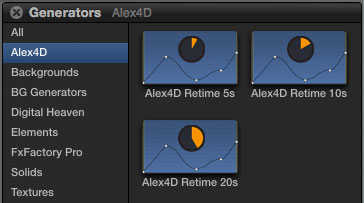
Once installed, the three generators appear in the Alex4D section of the Generators browser:

Read More

These effects improve on my first Final Cut Pro X effect, ‘Mask 8 Points.’

The current version of Final Cut doesn’t allow keyframing of mask shape co-ordinates in effects. These effects (which come in 4, 8 and 16 point variants) add transform controls to the mask (like my 8-point matte effect for Final Cut Pro 7).

The default effect:

The effect of the default settings for Alex Mask+ 8

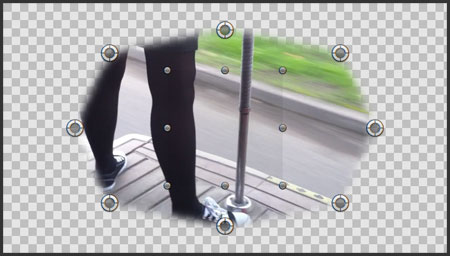
With the mask points scaled, repositioned and rotated:

Drag the transform control to reposition the mask, drag on an edge to scale, drag on a corner to rotate.

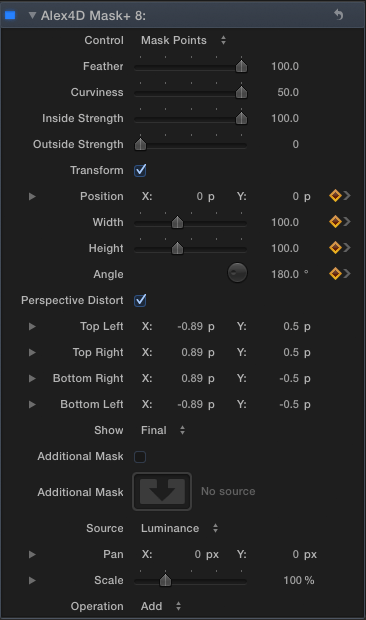
Here are the controls:

Read More

This Final Cut Pro X effect adds shadows to clips with transparent areas (or clips scaled down using Alex4D Curve Scale). It has an on-screen control that sets position and blurriness:

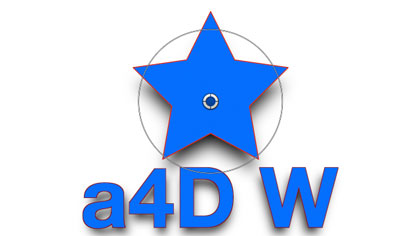
Drag the centre of the control to choose the position of the shadow, drag the outer circle to increase or decrease the softness of the shadow.

It also has the option to create ‘internal’ shadows:

You can also scale the shadow to create subtle perspective effects.

Read More