In which I provide an improved text crawl effect for Final Cut range of applications.
I created this plugin in response to a question in Larry Jordan’s monthly Final Cut Pro newsletter. Someone pointed out that the Text Crawl generator built into Final Cut Pro had a limit on how much text in can move across the screen.
[Note that generators aren’t limited to a 2 minute duration. If you change the duration in the Viewer before you add them to the timeline, they can be any length.]

As well as removing the text limitation, I added more features: shadow, background and animation controls.

Controls: section by section

If the font you want to use doesn’t appear in the font menu, you can type its name in the ‘Other’ field. See a previous post for methods of finding the exact name of the font you want to use.
Note that the plugin will ignore any font you then choose using the menu until you delete the name of the font named in the ‘Other’ field.
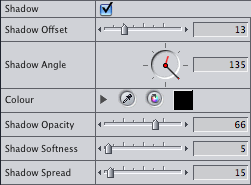
If you set the Shadow Offset to 0 and set a value for Shadow Spread, your text is outlined.

The Text baseline ranges from 0 (the top of the screen) to 100 (the bottom). The Solid Height and offset give control over the size of the background of the text. If the Solid Horizontal % is 100, there is no gradient fill. The Gradient Centre ranges from 0 (the left of the screen) to 100 (the right of the screen).
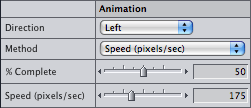
As well as animating the text so that it is all animated across the screen over the duration of the generator (Method ‘From In to Out’), you can also keyframe the ‘% Complete’ value (see this post for how to do this), or set the speed of the text to a specific number of pixels per second.
The Shadow settings can produce results like this:

…using these settings for Shadow Angle, Softness and Spread:

Here’s a demo video:
Note that this plugin does not stop you from choosing terrible colour combinations for text, shadow and background colour.

Download: Alex4D Crawl.
Copy the ‘Alex4D Crawl.fcfcc’ file into one of two places on your computer:
Your Startup HD/Library/Application Support/Final Cut Pro System Support/Plugins
or
Your Startup HD/Users/your name/Library/Preferences/Final Cut Pro User Data/Plugins/
(Your Startup HD/Users/your name/Library/Application Support/Final Cut Express Support/Plugins for Final Cut Express users)
Restart Final Cut, and you’ll see the generator in the ‘Text’ section of ‘Video Generators’
Visit my Final Cut home for more plugins and tips














 alex4D old blog