A handy method for breaking down a long clip in Final Cut is to set markers to indicate the start of interesting shots, and make subclips based on these markers.
Once you have set the markers, you’ll see them listed below the clip in the browser. You can turn these into subclips by dragging them to a bin. In this example, a shot of bus journey through London (‘christmas lights full-1296p’) has five markers, each representing when the bus arrived at each landmark. To divide the clip into subclips that each only have the footage from the named landmark, I dragged the markers to a bin named ‘Christmas lights subclips’:
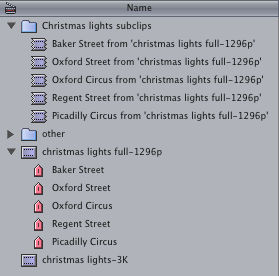
[Note that usually the subclips in the bin would be listed in alphabetical order, which wouldn’t be useful. To keep the subclips in chronological order, I sorted the Browser by clicking the ‘Media Start’ column]
This is convenient, but the fact that Final Cut adds from ‘christmas lights full-1296p’ to the name of each subclip is a little redundant. The following tip shows how you can edit the Final Cut Pro application itself so that it doesn’t add these suffixes to the names of the new subclips.
Before I explain this tip, I can only tell you that this method worked for me, I haven’t tested it on any combination of software and hardware but my own. This process might damage FCP on your system, so be careful. This operation is a little like the Mac users of 10 and 20 years ago using ResEdit to muck around inside their applications.

ResEdit was a tool for programmers, and it was easy to blunder around too much and create a fault in the application being modified. That is why the first stage is to make a backup copy of Final Cut, in case the copy you work on crashes or cannot open.
The backup copy is good to have around when the next software update appears. It is possible that changes inside Final Cut will make the upgrade process fail, and you’ll end up without a working copy of Final Cut. Before applying an update, delete your modified ‘Final Cut Pro’ and rename ‘Final Cut Pro copy’ back to ‘Final Cut Pro’
1. Duplicate ‘Final Cut Pro.app’ by selecting it and choosing Duplicate from the File menu or press Command-D (to make a safety copy in case this process goes wrong)
2. Select the original ‘Final Cut Pro.app’
3. Control-click it and choose ‘Show Package Contents’ from the pop-up menu
4. Go to the new folder that represents the contents of ‘Final Cut.app’
5. Open these series of folders within ‘Final Cut.app’: Contents > MacOS > Plugins
6. Select ‘Browser.bundle’
7. Control-click it and choose ‘Show Package Contents’

8. Open these series of folders within ‘Browser.bundle’: Contents > Resources > English.lproj

9. In the newly visible ‘English.lproj’ folder double-click ‘Localized.plist’ to open it in ‘TextEdit’
10. Search for string number 8045
11. Change the line below
from
%00s from ‘%01s’
to
%00s
i.e. from
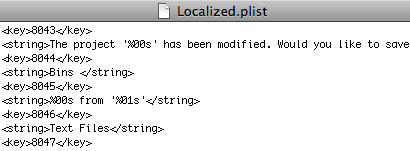
to
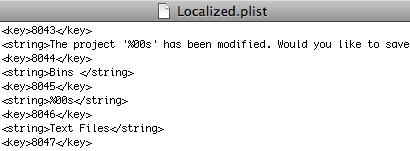
12. Save ‘Localized.plist’
13. Close the Browser.bundle window and the Final Cut Pro.app window.
When you next open Final Cut Pro (version 6.0.4), any new markers you drag from a clip will turn into subclips with no from ‘Clip’ suffix at the end of their names. Note that the string might not be number 8045 in other versions of Final Cut. If it is different in your version, try searching for %00s from ‘%01s’ in ‘Localised.plist’ and change that string.
If you are feeling brave, you could experiment and find the string that adds the word ‘Subclip’ to newly generated subclips based on In and Out points. Try searching for Subclip with a space in front.
Good luck!









 alex4D old blog